
ChatGPT Trust Snapshot
Real Free Score
80/100
Lock-In Risk
Medium
Billing Friction
Low
Commercial Use
Allowed
Data Privacy
Clear
Volatility
Medium
Last checked
2026-07-22
Most business owners and marketers hear "AI workflow" and immediately think: that must require a developer. It doesn't. In 2026, the most productive no-code builders are running fully automated AI systems — systems that research, write, classify, and respond — using tools they set up in a single afternoon. No Python. No APIs. No engineering background.
The gap between people who are automating with AI and people who aren't is getting wider every month. The good news is that you don't need to cross to the developer side to close it. You just need the right no-code platform, a clear understanding of how AI steps work inside automations, and a starting template.
This guide gives you all three.
🔗 Related reading: Before building your first no-code AI workflow, it helps to understand the AI tools you'll be connecting. See our guides on How to Use ChatGPT, How to Use Claude AI, and How to Build an AI Workflow (the broader strategy behind workflow automation).
⚡ TL;DR — No-Code AI Workflow in 2026
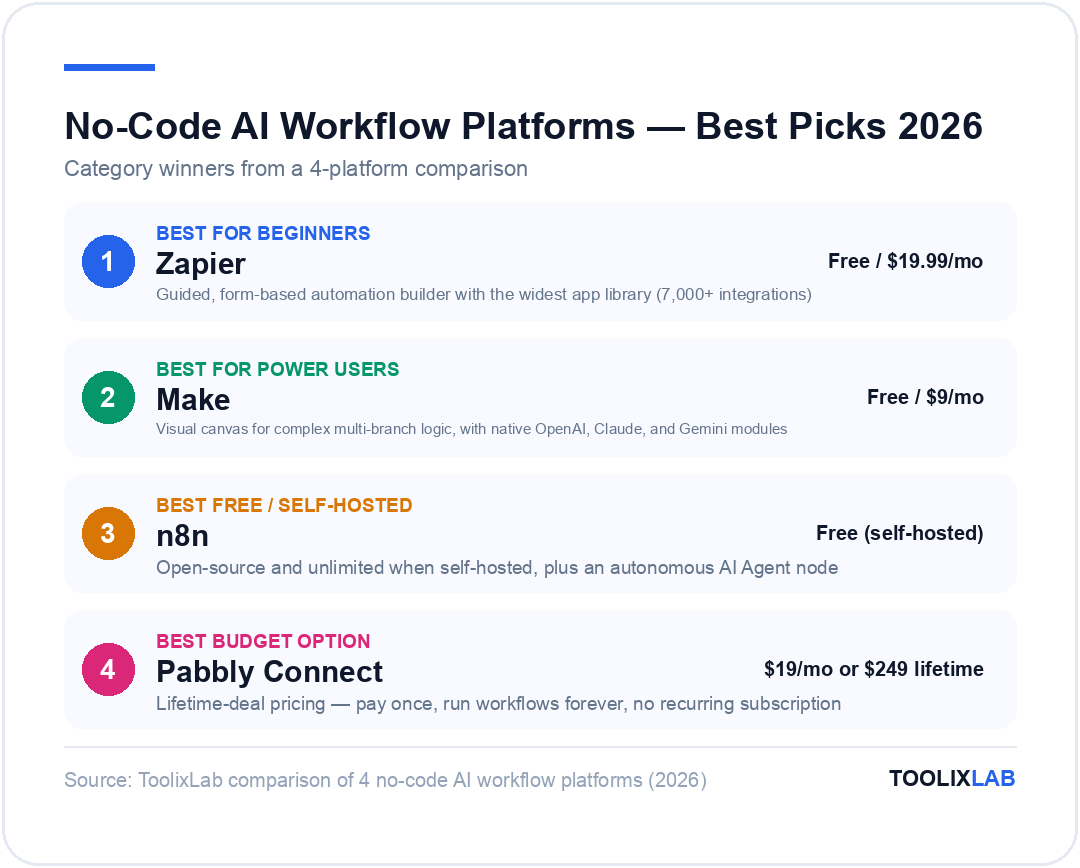
- Best for beginners: Zapier (easiest, 7,000+ integrations)
- Best for power users: Make (visual canvas, cheaper)
- Best free/self-hosted: n8n (open source, unlimited)
- Best AI model for workflows: ChatGPT (widest integrations)
- Time to first workflow: Under 60 minutes
- Top use cases: Content repurposing, email triage, lead qualification
- Biggest mistake: Over-complicating your first workflow
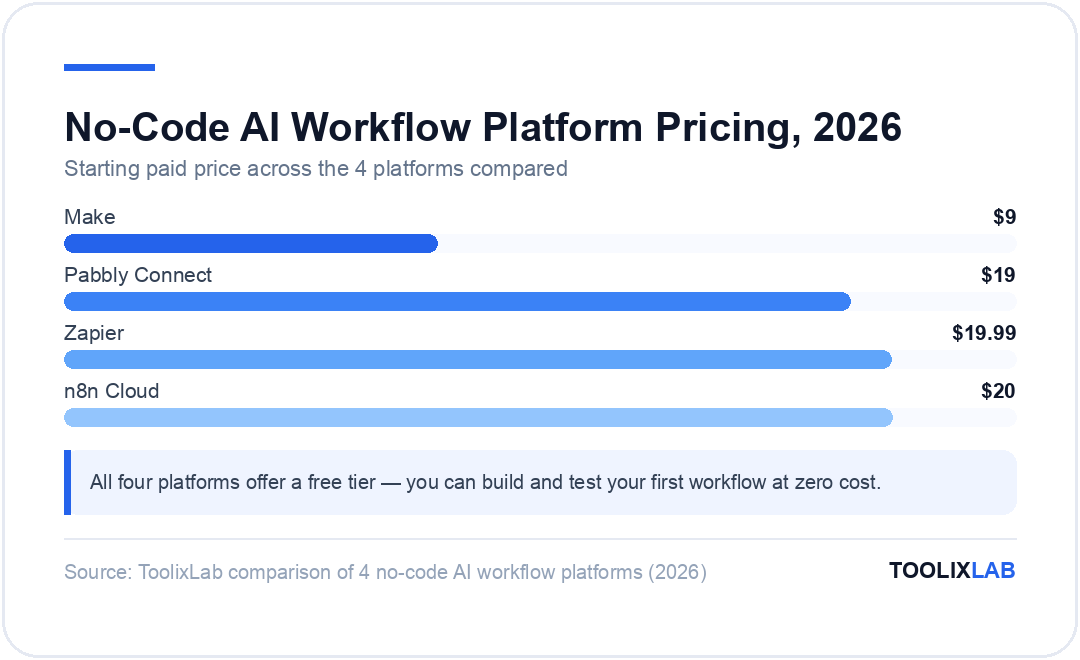
- Entry cost: $0 (free tiers on all major platforms)
What Is a No-Code AI Workflow?
A no-code AI workflow is an automated sequence of steps — built without writing a single line of code — that uses an AI model as one or more of those steps to intelligently process information.
Traditional no-code automation (what Zapier made famous in the 2010s) worked like a simple conditional: if something happens in App A, do something in App B. A new lead in your CRM → send a welcome email. A new Typeform submission → create a Notion row. Useful, but mechanical. The "logic" was just routing data from one field to another.
No-code AI workflows add a fundamentally different layer: intelligence. Instead of just moving data, an AI step can read, classify, summarise, generate, score, or transform that data before passing it on. The result is automation that behaves more like a smart employee than a data pipe.
The difference in one example:
Traditional automation: New support email arrives → create a Zendesk ticket (just routing)
No-code AI workflow: New support email arrives → AI classifies it as billing/bug/feature request → AI drafts a personalised reply based on the category → assigns to the right team member → creates a Zendesk ticket with priority score → logs to Notion
Same trigger. Completely different outcome.
The reason no-code AI workflows became practical in 2025–2026 (rather than earlier) is the convergence of two trends:
- AI models became reliable enough to use as automation steps — their outputs are consistent enough to act on programmatically
- No-code platforms added native AI actions — Zapier, Make, and n8n all now have built-in OpenAI/Claude/Gemini steps that require zero configuration beyond pasting in your API key
The result is that anyone with a free afternoon can now build systems that would have required a developer team two years ago.
The 3 Components of Every No-Code AI Workflow
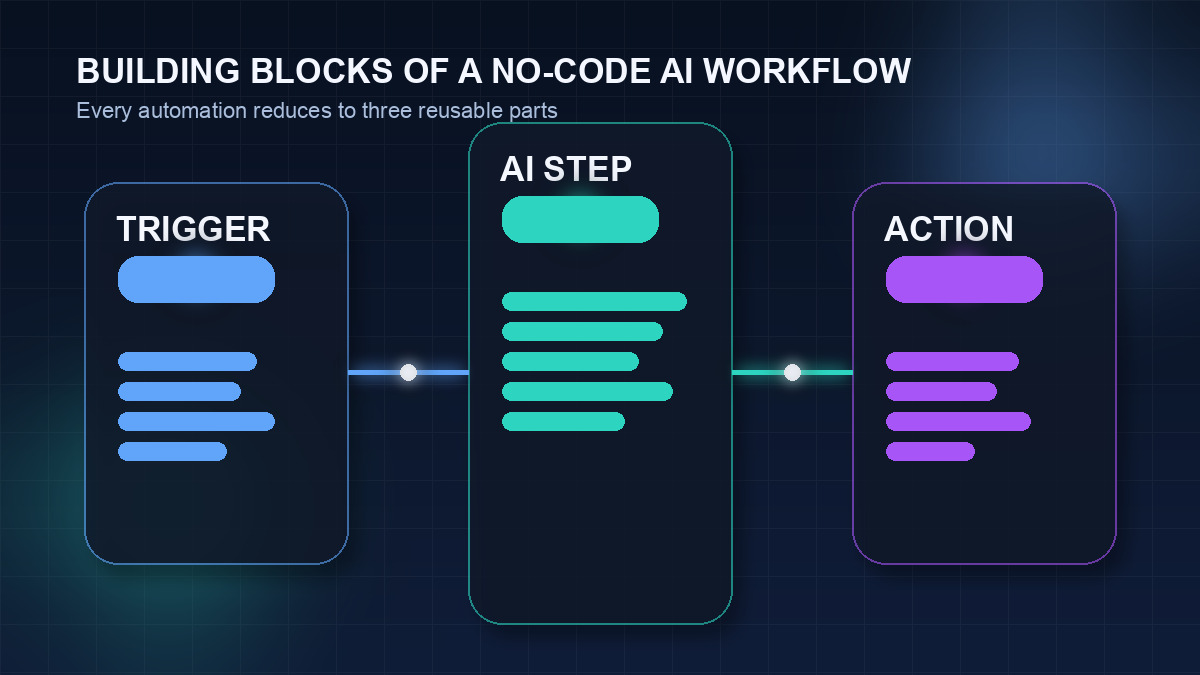
No matter how complex a workflow gets, it's always made from three components:
- Trigger — the event that starts the workflow (a new email, form submission, calendar event, Slack message, RSS item, scheduled time, etc.)
- AI Step — the intelligent processing layer (classify this email, summarise this article, draft a reply, score this lead, extract key information)
- Action — what happens with the AI's output (send an email, create a database row, post to Slack, update a CRM field, create a task)
Most workflows add filters, formatters, and conditional branches between these core components — but the logic stays the same. Trigger → Intelligence → Action.
The 4 Best No-Code Platforms for AI Workflows in 2026
Your choice of platform determines what you can build, how fast you can build it, and what it'll cost. Here are the four platforms worth knowing, in order of beginner-friendliness.
1. Zapier — Best for Beginners
Zapier is the most mature no-code automation platform and has the widest app library (7,000+ integrations). Its AI step — powered by OpenAI — is called AI by Zapier and lets you write a plain-English prompt that processes your workflow data. No API keys required on paid plans.
What makes it great for beginners: Every step is a simple form. You choose an app, choose an event, map the fields. It's the most guided experience in the market. If you've never built an automation before, start here.
Where it falls short: It's the most expensive platform per task-run, the free tier is very limited (100 tasks/month, 2-step Zaps only), and complex multi-branch logic is harder to visualise than on Make.
Pricing: Free (100 tasks/mo) → Starter $19.99/mo → Professional $49/mo → Team $69/mo
2. Make (formerly Integromat) — Best for Power Users
Make uses a visual canvas where you drag, drop, and connect modules like a flowchart. It's more powerful than Zapier for complex workflows — you can build parallel branches, iterators, aggregators, and error-handling paths that would be impossible or impractical in Zapier.
Make has native OpenAI, Anthropic (Claude), and Google Gemini modules. Its free tier gives you 1,000 operations/month — 10x more generous than Zapier's free plan.
What makes it great for power users: The visual canvas makes complex logic understandable at a glance. HTTP modules let you call any API without code. Pricing is substantially cheaper than Zapier at scale.
Where it falls short: Steeper learning curve than Zapier. The interface can feel overwhelming when you first open a blank canvas.
Pricing: Free (1,000 ops/mo) → Core $9/mo → Pro $16/mo → Teams $29/mo
3. n8n — Best Free/Self-Hosted Option
n8n is the open-source alternative. You can run it on your own server (free, unlimited) or use n8n Cloud (paid). It supports 400+ integrations and has native AI nodes for OpenAI, Anthropic, and Hugging Face — plus an AI Agent node that can autonomously use tools to complete tasks.
For developers or technical users who want unlimited automations for free, n8n is the clear winner. For pure beginners, it's a steeper climb.
What makes it great: Completely free (self-hosted), the most powerful AI Agent capabilities of any no-code platform, no per-operation pricing if self-hosted.
Where it falls short: Self-hosting requires a server and basic command-line comfort. Less polished UI than Zapier/Make.
Pricing: Free (self-hosted) → n8n Cloud Starter $20/mo → Pro $50/mo
4. Pabbly Connect — Best Budget Option
Pabbly Connect is the underdog of the category — it offers a lifetime deal (pay once, use forever) that makes it the most cost-effective option for users who want to automate at scale without recurring costs. It has 1,000+ integrations and an OpenAI action for AI steps.
What makes it great: The lifetime pricing model is unique in the category. If you plan to run high-volume workflows long-term, Pabbly's total cost of ownership is significantly lower than Zapier or Make.
Where it falls short: Smaller app library, slower feature development, and AI capabilities aren't as advanced as Zapier or Make.
Pricing: Free trial → $19/mo Standard → Lifetime deals from $249 (one-time)
Platform Comparison at a Glance
| Platform | Skill Level | Free Tier | AI Models | Best For | Paid From |
|---|---|---|---|---|---|
| Zapier | Beginner | 100 tasks/mo | OpenAI, Claude | First workflow, simple automations | $19.99/mo |
| Make | Intermediate | 1,000 ops/mo | OpenAI, Claude, Gemini | Complex multi-step workflows | $9/mo |
| n8n | Technical | Unlimited (self-hosted) | OpenAI, Claude, Hugging Face | Free unlimited workflows, AI agents | $20/mo (cloud) |
| Pabbly | Beginner | Free trial | OpenAI | High-volume, budget-conscious teams | $19/mo |
Our recommendation: Start with Zapier if you've never built an automation before — the guardrails are helpful. Switch to Make once you've built 3–5 workflows and want more power for less money. Use n8n if you're comfortable with self-hosting and want to run unlimited AI automations at zero ongoing cost.
How to Build Your First No-Code AI Workflow (Step-by-Step)
We're going to build a Content Repurposing Workflow — one of the highest-ROI automations for content creators, marketers, and solo founders. When you publish a new blog post, this workflow automatically generates a LinkedIn post and a Twitter/X thread using AI, and saves them to a Notion database for review before posting.
We'll build it in Zapier since it's the most beginner-friendly. The logic translates directly to Make or n8n.
What you'll need:
- A Zapier account (free tier works for testing)
- An OpenAI account with an API key (free trial credits included)
- A Notion account (free)
- A blog with an RSS feed (WordPress, Ghost, Substack, Webflow, etc.)
Step 1: Create a New Zap and Set the Trigger
In Zapier, click "Create Zap." For the trigger, search for RSS by Zapier and select it. Choose the event "New Item in Feed."
Enter your blog's RSS feed URL (usually yourdomain.com/feed or yourdomain.com/rss.xml). Click "Continue" and then "Test trigger" — Zapier will pull the most recent post from your blog to use as test data. You should see the post title, URL, content, and description.
This trigger fires every time you publish a new post. Everything downstream happens automatically.
Step 2: Add the First AI Step — Generate a LinkedIn Post
Click the "+" button to add an action step. Search for OpenAI (GPT-4 & DALL-E) and select it. Choose the action event: "Send Prompt."
Connect your OpenAI account (you'll need to paste in your API key from platform.openai.com). Then configure the prompt:
Model: gpt-5.4
User Message:
You are a LinkedIn content strategist. Based on the following blog post, write a LinkedIn post that: (1) opens with a counterintuitive insight or question, (2) includes 3–4 bullet points of key takeaways, (3) ends with a call to action to read the full article. Keep it under 1,300 characters. Do not use hashtags more than 3.Blog post title: [insert RSS Title field]
Blog post excerpt: [insert RSS Description/Content field]
Map the [RSS Title] and [RSS Description] fields from Step 1 into your prompt using Zapier's field mapper. This makes the prompt dynamic — it will personalise itself for every new post.
Step 3: Add the Second AI Step — Generate a Twitter/X Thread
Click "+" again and add another OpenAI action. This time, the prompt is:
You are a Twitter/X growth writer. Based on the following blog post, write a Twitter thread of 5–7 tweets. Format it as: Tweet 1: (hook that makes people stop scrolling) Tweet 2: (insight 1) ... Tweet 7: (link tweet). Each tweet must be under 280 characters. Separate each tweet with a blank line.
Blog post title: [RSS Title]
Blog post excerpt: [RSS Description]
Step 4: Save Both Outputs to Notion
Click "+" and add a Notion action. Choose "Create Database Item." Connect your Notion account and select a database (create one called "Content Queue" with columns: Title, LinkedIn Post, Twitter Thread, Blog URL, Status).
Map the fields:
- Title → RSS Title (from Step 1)
- LinkedIn Post → OpenAI Response (from Step 2)
- Twitter Thread → OpenAI Response (from Step 3)
- Blog URL → RSS URL (from Step 1)
- Status → "Needs Review" (static text)
Step 5: Test and Activate
Run a full test using the sample post Zapier pulled in Step 1. Check the Notion database — your LinkedIn post and Twitter thread should appear as a new row, linked to the blog post URL, with status "Needs Review."
If the outputs look good, click "Publish." From now on, every time you publish a new blog post, AI-generated social content lands in your Notion queue within minutes. You review, edit if needed, and post. The research and first draft — the hardest part — is already done.
Time saved per post: ~45 minutes of manual content repurposing. If you publish weekly, that's roughly 39 hours per year saved from a single one-hour setup.
5 No-Code AI Workflow Templates to Copy Today
Here are five proven workflow templates across different use cases. Each one follows the same Trigger → AI Step → Action structure.
Template 1: Intelligent Email Triage
The problem: Your inbox is full of mixed emails — customer questions, support requests, press inquiries, spam. You spend 30+ minutes a day sorting and routing them.
The workflow:
- Trigger: New email arrives in Gmail (filtered to your main inbox)
- AI Step: ChatGPT classifies the email as: Customer Support / Sales Lead / Press / Spam / Internal, and drafts a suggested reply for Support and Sales emails
- Actions: Apply Gmail label → Create Zendesk/Freshdesk ticket (if Support) → Add to CRM (if Sales) → Move to Spam folder (if Spam) → Send draft reply to Drafts folder
Platform: Zapier or Make | Setup time: ~45 minutes
Template 2: Lead Qualifier and CRM Enricher
The problem: You're getting form submissions from potential clients, but qualifying them manually takes time — and high-intent leads sometimes wait too long for a response.
The workflow:
- Trigger: New Typeform/Tally/Google Form submission
- AI Step: Claude or GPT-5.4 scores the lead 1–10 based on company size, use case, budget indicators, and urgency signals in the form response. Generates a personalised outreach email draft.
- Actions: Create CRM contact (HubSpot/Pipedrive) with lead score field → Send high-score leads (8–10) to Slack #sales channel immediately → Add medium leads to email sequence → Archive low-score leads
Platform: Make or Zapier | Setup time: ~60 minutes
Template 3: Customer Support Auto-Draft
The problem: Your support team spends 60–70% of their time writing responses to questions that have known answers — shipping delays, refund policies, product FAQs.
The workflow:
- Trigger: New support ticket in Zendesk, Intercom, or Gmail
- AI Step: GPT-5.4 reads the ticket, matches it against a knowledge base (fed as context in the system prompt), generates a full reply. Also classifies: Does this require human review? Yes/No.
- Actions: Add AI draft to ticket as internal note → Tag ticket with category → If human review = Yes, assign to agent and ping Slack → If human review = No, send draft directly (optional, with human final approval)
Platform: Make or n8n | Setup time: ~90 minutes (including knowledge base preparation)
Template 4: Daily AI Research Briefing
The problem: You need to stay updated on industry news, competitor moves, and relevant content — but manually monitoring RSS feeds, newsletters, and LinkedIn takes too long every morning.
The workflow:
- Trigger: Scheduled (every weekday at 7:00 AM)
- Data Sources: Pull latest items from 5–10 RSS feeds (industry blogs, competitor blogs, news sites)
- AI Step: Claude reads all collected items and produces a structured briefing: Top 3 stories, Key competitive insights, 1 content idea based on trending topics
- Action: Send briefing to your email and/or Slack channel
Platform: Make or n8n (handles multiple RSS sources better than Zapier) | Setup time: ~60 minutes
Template 5: Meeting Notes → Action Items
The problem: After every meeting, you have a transcript or recording but no time to process it into clear action items, decisions, and follow-ups.
The workflow:
- Trigger: New transcript file added to Google Drive folder (Fireflies.ai, Otter.ai, or Zoom auto-upload)
- AI Step: GPT-5.4 reads the transcript and outputs: (1) 3-sentence meeting summary, (2) list of action items with owner names, (3) key decisions made, (4) follow-up questions outstanding
- Actions: Create Notion page with structured output → Create tasks in Asana/Linear for each action item → Send summary email to all attendees
Platform: Zapier or Make | Setup time: ~45 minutes
How to Connect ChatGPT, Claude, and Gemini to Your Workflows
Every major no-code platform has built-in actions for the leading AI models. Here's how to connect each one.
Connecting ChatGPT (OpenAI)
OpenAI has native integrations in Zapier, Make, and n8n. You'll need an API key from platform.openai.com/api-keys. OpenAI gives $5–$18 in free trial credits — enough to test dozens of workflows before spending anything.
Key settings to configure:
- Model: Use
gpt-5.4for most tasks (best quality-to-cost ratio). Usegpt-5.4-minifor high-volume, simple tasks (significantly cheaper). - System prompt: Always include a system prompt that gives the AI its role and constraints. This dramatically improves output consistency across workflow runs.
- Max tokens: Set a max token limit to control costs and prevent unexpectedly long outputs that break downstream steps.
- Temperature: 0.7 for creative tasks, 0.2–0.4 for classification and structured outputs where consistency matters.
Connecting Claude (Anthropic)
Claude is available natively in Make and n8n, and via Zapier's HTTP/Webhooks action (or through the official Zapier integration launched in 2025). Get your API key from console.anthropic.com.
Claude is particularly strong for:
- Long-document processing (200K context window)
- Writing tasks requiring natural, nuanced output
- Following complex instructions reliably
Use Claude Sonnet 4.6 as your default — it's the best balance of quality and speed. Switch to Claude Opus 4.6 for complex reasoning tasks where output quality is critical and speed is secondary.
Connecting Google Gemini
Gemini is available natively in Make (Google AI module) and via the Zapier integration. It's the natural choice if your workflow heavily uses Google Workspace data — Gmail, Google Docs, Google Sheets — since Gemini's context and permissions integrate cleanly with Google services.
Cost tip: At scale, AI API costs can accumulate quickly. Monitor your usage in the first 2 weeks. Use
gpt-5.4-miniorclaude-haiku-4-5for high-volume classification tasks, and reserve the larger models for tasks where output quality directly impacts your results.
6 No-Code AI Workflow Mistakes That Will Cost You Time
Most people make the same mistakes when building their first AI workflows. Knowing them in advance saves hours of troubleshooting.
Mistake 1: Over-Complicating Your First Workflow
The most common mistake is trying to build a 10-step workflow before you've built one. Start with a Trigger → 1 AI Step → 1 Action workflow. Get it working, understand the output format, then layer in complexity. The most valuable workflows are usually 3–4 steps, not 10.
Mistake 2: Vague AI Prompts
Vague prompts produce vague outputs. "Summarise this email" will give you a mediocre summary that breaks downstream steps. "Summarise this email in exactly 2 sentences. The first sentence should state the sender's main request. The second sentence should state any deadline mentioned, or 'No deadline stated' if there isn't one." — that gives you a predictable, usable output.
Your AI prompt in a workflow is effectively your quality control mechanism. Invest time writing it precisely.
Mistake 3: Not Testing With Edge Cases
Always test your workflow with at least 3–5 different inputs before activating it. What happens when the email is 1 sentence long? What if it contains a URL or HTML formatting? What if it's in a different language? Workflows that work 90% of the time and fail silently the other 10% are worse than no automation — because you'll trust the output without checking.
Mistake 4: Ignoring Token Limits and API Costs
If your workflow processes long documents — full email threads, complete transcripts, lengthy articles — you can blow through your monthly AI budget quickly. Always check the token count of your typical input. If you're passing in an entire email thread history, truncate it to the most recent 3–5 messages rather than the full history.
Mistake 5: No Error Handling
What happens when the AI call fails? When the API rate limit is hit? When a field is empty? Without error handling, failed workflow runs silently produce broken outputs — or worse, run partial actions (a task is created, but the AI response field is blank). Zapier and Make both have error-handling paths; use them from the start.
Mistake 6: Not Documenting Your Workflows
Six months from now, you won't remember why you set up the prompt the way you did. Add a comment node at the start of every workflow explaining: what it does, what triggers it, what the expected output format is, and any known limitations. This is especially important if someone else on your team will manage the workflow.
When to Graduate from No-Code to Low-Code
No-code tools cover the vast majority of AI workflow use cases — but there are signals that you've outgrown them.
Consider low-code or custom code when:
- You need to process data in ways that no-code formatters can't handle (complex parsing, nested JSON, regex on varied inputs)
- Your workflow costs are driven by the automation platform's per-operation pricing, not the AI API cost itself — this is a sign you've hit the scale ceiling of no-code economics
- You need multi-turn AI conversations within a single workflow run (agents that loop until a task is complete)
- You want to run AI workflows on your own server with full control over data privacy and residency
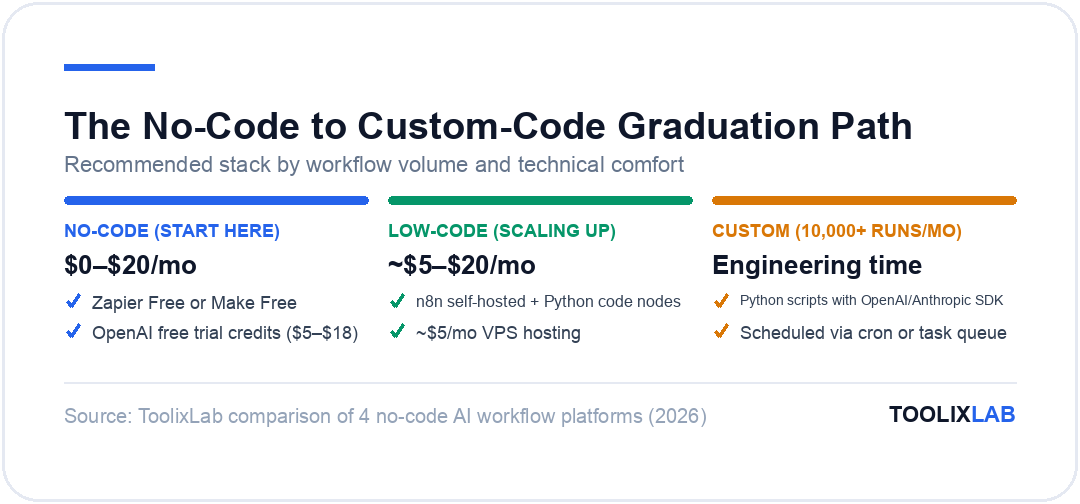
The practical graduation path:
- Step 1 (No-code): Zapier or Make — validated your use case, built the logic
- Step 2 (Low-code): n8n with Python code nodes — more control, still visual, self-hosted free
- Step 3 (Custom): Python scripts with the OpenAI/Anthropic SDK, scheduled via cron or a task queue — full control, lowest per-run cost, requires engineering time
Most teams stay at Step 1 or 2 indefinitely. The economics only shift toward Step 3 when you're running tens of thousands of workflow executions per month.
Not sure which stage you're at? If you're running fewer than 10,000 workflow executions per month, the cost and complexity of custom code almost never justifies the switch. Stay no-code and invest the saved engineering time elsewhere.
Your No-Code AI Workflow Action Plan
If you've read this far, you have everything you need to build your first no-code AI workflow today. Here's a 3-step action plan:
- Choose your first use case. The easiest starting point is the Content Repurposing Workflow (Template 1) if you publish content, or the Meeting Notes → Action Items workflow if you run a lot of meetings. Pick one that will immediately save you time this week.
- Create your accounts. Sign up for Zapier (free) and OpenAI (free trial credits included). These two tools are enough to build and test your first workflow at zero cost.
- Build the minimum viable version first. Start with Trigger → 1 AI Step → 1 Action. Get that working. Run it five times with different inputs. Then add complexity.
The people who automate most effectively aren't the ones who planned the perfect system before building. They're the ones who shipped an imperfect first version, learned from it, and iterated. Your first workflow doesn't have to be perfect — it has to be running.
Want to go deeper? See our complete guide on How to Build an AI Workflow for the broader strategy behind multi-tool AI automation, including 5 more workflow blueprints and a platform selection framework. For tool comparisons, see Zapier vs Make vs n8n: The Honest Comparison and Best Workflow Automation Tools for Small Business.