
A practical, step-by-step guide to combining AI tools into automated systems that run without you. Includes 5 real workflow examples, a tool selection guide, and a 30-minute quick start for complete beginners.
By ToolixLab Research Team | Editor | February 2026
⚡ What You'll Learn
- What an AI workflow actually is — and why single AI tools aren't enough
- The 5 building blocks every AI workflow is made from
- 5 complete workflow blueprints you can copy and deploy today
- Which automation tool to use: Zapier vs Make vs n8n — matched to your skill level
- A 30-minute quick start to build your first workflow from scratch
Most people use AI tools like they use a calculator: one task at a time, manually. They ask ChatGPT something, copy the answer, paste it somewhere else, then move on to the next thing. That's useful — but it's nowhere near what AI can actually do for you.
The professionals pulling significantly ahead in 2026 aren't the ones with the best AI prompts. They're the ones who've stopped treating AI as a tool they operate and started treating it as a system that operates on their behalf. They've built AI workflows — connected chains of triggers, AI models, and actions that run automatically, without them being present.
A content team gets a new client brief by email → an AI extracts the key information → generates a structured project brief → creates a Notion page → sends a Slack notification to the team. Nobody touched it. It just happened.
A freelancer completes a project → sends an invoice → Bonsai marks it paid → a Zapier workflow fires → ChatGPT generates a personalised thank-you and case study request email → it lands in the client's inbox. The freelancer was asleep.
This is what an AI workflow looks like in practice. And building one requires no coding skills — just a clear understanding of the five building blocks every workflow is made from, and the right tool to connect them.
This guide will give you both.
🔗 New to the AI tools mentioned here? Get up to speed with our guides on How to Use ChatGPT, How to Use Claude AI, and How to Use Gemini AI before building your first workflow.
What Is an AI Workflow? (And Why Single Tools Aren't Enough)
An AI workflow is an automated sequence of steps that combines triggers, AI models, and actions into a system that runs without manual intervention.
Here's the simplest possible example:
Trigger: New email arrives in Gmail
AI Step: ChatGPT reads and classifies the email (inquiry, complaint, invoice, etc.)
Action: Moves the email to the right folder AND drafts a reply based on the classification
Three steps. No code. Completely automatic.
The reason single AI tools aren't enough is that they're reactive — they respond when you ask them something. An AI workflow is proactive: it monitors for events, processes them intelligently, and takes action without you having to initiate anything.
The difference between "using AI" and "running AI workflows" is roughly equivalent to the difference between manually typing in Excel formulas and having a spreadsheet that automatically updates when new data arrives. Both are useful. Only one scales.
📊 The productivity case for AI workflows:
- Professionals using integrated AI automation report saving an average of 12.5 hours per week — equivalent to 26 full working days per year.
- The workflow automation market is projected to reach $71.03 billion by 2031 at a 23.68% annual growth rate.
The 5 Building Blocks of Every AI Workflow
Every AI workflow — no matter how simple or complex — is built from the same five components. Understanding these makes building workflows dramatically easier, because you're always just answering the same five questions.

🔴 Block 1: Trigger
What starts the workflow?
A trigger is the event that kicks everything off. Without a trigger, your workflow sits idle. Common triggers for AI workflows include:
- A new email arrives in a specific inbox
- A form is submitted on your website
- A new row is added to a Google Sheet
- A file is uploaded to a folder in Google Drive
- A calendar event is created
- A message is posted in a Slack channel
- A specific time of day or day of the week
- A webhook from any external app
Your trigger choice defines when your workflow runs. Most no-code automation tools have hundreds of built-in triggers covering virtually every app you use.
🟠 Block 2: Input
What data does the AI need?
After the trigger fires, you need to gather the relevant information the AI will process. This step is about pulling together the right context — not adding steps.
For the email classification example: the input is the email subject, sender, and body text. For a content workflow: it might be a brief from a Google Doc, a URL to research, and a target keyword. For a client workflow: the client name, project type, and deadline from a form submission.
The cleaner and more complete your input, the better your AI step will perform. Garbage in, garbage out applies here as much as anywhere.
🟡 Block 3: AI Step
What should the AI do with the data?
This is where ChatGPT, Claude, Gemini, or another model enters the workflow. The AI step takes your input and produces a structured output based on a prompt you've written in advance.
Good AI steps are:
- Specific — the prompt tells the AI exactly what to produce and in what format
- Consistent — the same input should produce reliably similar outputs every time
- Scoped — the AI step does one thing well, rather than trying to do everything
A common mistake is making the AI step too ambitious — asking it to research, analyse, write, and format all in one prompt. Better to split complex processes into multiple AI steps, each with a focused job.
🟢 Block 4: Output
What format does the result need to be in?
The AI step produces text — but that text needs to land somewhere useful. Your output specification tells the workflow what to do with the AI's response before the next action fires.
Output considerations:
- Does the AI response need to be structured (a JSON object, a table, specific fields)?
- Does it need to be cleaned or extracted from a longer response?
- Does it need to be split into multiple parts that go to different places?
For simple workflows, the output is just the full text response. For more complex ones, you may need to extract specific fields — the subject line from a generated email, the score from a classification, the action items from a meeting summary.
🔵 Block 5: Action
Where does the result go and what happens next?
The action is what the workflow actually does with the AI's output. This is the step that creates value — the part where your automated system produces a real-world result.
Common actions in AI workflows:
- Send an email or Slack message
- Create a document, record, or task in Notion, Trello, Asana, or HubSpot
- Add a row to a Google Sheet
- Post to a social media account
- Update a CRM record
- Send a webhook to another app
- Save a file to Google Drive or Dropbox
- Trigger another workflow
Before You Build: Map Your Workflow First
The most common mistake beginners make is jumping straight into their automation tool and trying to build as they go. The result is a half-finished workflow, a confusing interface, and the conclusion that "this is too complicated."
Spend 10 minutes mapping your workflow on paper — or even in a chat with Claude — before opening Zapier or Make. Answer these six questions:
- What event starts this workflow? (Your trigger)
- What information does the AI need to do its job? (Your input)
- What exactly should the AI produce? (Your AI step — write the prompt here)
- What format should the output be in? (Your output specification)
- Where should the result go and what should happen? (Your action)
- What should happen if something goes wrong? (Error handling)
Once you can answer all six, building the workflow itself takes 20–30 minutes. Skipping this step is why most people spend three hours building a workflow that takes 30 minutes once you understand what you're actually making.
💡 Pro tip: Ask Claude to help you design your workflow before you build it. Describe what you want to automate and ask: "Map this as a trigger → input → AI step → output → action workflow. Write the AI prompt I should use in step 3." Claude is exceptional at this kind of structured system design.
5 Complete AI Workflow Blueprints
Here are five complete, ready-to-deploy workflows — each described with trigger, input, AI step, output, and action so you can build them directly.

🗂️ Workflow 1: Automatic Content Brief Generator
Who it's for: Content marketers, writers, agencies, freelancers
Time to build: 30 minutes in Zapier or Make
Tools needed: Google Forms (or Typeform), ChatGPT or Claude API, Google Docs, Slack (optional)
The problem it solves: Every new content request requires manually creating a brief — gathering the keyword, audience, angle, and requirements. For teams handling 10+ requests per week, this is hours of repetitive work.
The workflow:
| Step | Details |
|---|---|
| Trigger | New form submission in Google Forms (or Typeform) |
| Input | Topic, target keyword, audience, tone, word count, deadline — all from form fields |
| AI Prompt | "You are a senior content strategist. Based on this brief: Topic: [topic], Keyword: [keyword], Audience: [audience], Tone: [tone], Length: [word count]. Produce: 1) A compelling H1 title (max 60 chars), 2) A meta description (max 155 chars), 3) A detailed outline with 6-8 H2 sections and 3 bullet points each, 4) 5 LSI keywords to include naturally, 5) 3 specific data points or statistics to research. Format as structured text with clear labels." |
| Output | Full brief text extracted from AI response |
| Action 1 | Create a new Google Doc with the brief content, titled with the H1 |
| Action 2 | Post a Slack message to the content channel: "New brief ready: [H1 title] — [Google Doc link]" |
Result: Someone fills in a form → a complete, structured content brief appears in Google Docs and a Slack notification fires — in under 90 seconds, with no human involvement.
Upgrade it: Add a second AI step that searches Perplexity for the top 3 competing articles on the target keyword and appends a competitive analysis section to the brief.
📬 Workflow 2: Intelligent Email Triage and Draft
Who it's for: Consultants, solopreneurs, sales professionals, anyone with a high-volume inbox
Time to build: 25 minutes in Zapier
Tools needed: Gmail, ChatGPT or Claude API, Gmail (for drafts), Notion (optional)
The problem it solves: Reading, categorising, and responding to emails consumes an average of 2.5 hours per day for knowledge workers. This workflow pre-classifies every incoming email and drafts a response for the ones that need one — so you spend 20 minutes reviewing and approving, not 2.5 hours thinking.
The workflow:
| Step | Details |
|---|---|
| Trigger | New email received in Gmail (filter: not promotional, not from mailing lists) |
| Input | Sender name, sender email, subject line, email body (first 500 words) |
| AI Prompt | "Classify this email and draft a response if needed. Email from: [sender], Subject: [subject], Body: [body]. Tasks: 1) Classify as one of: New inquiry / Client question / Invoice / Meeting request / FYI only / Requires no response. 2) Priority: High / Medium / Low. 3) If response needed, draft a reply in a professional but warm tone. Keep draft under 150 words. If no response needed, write 'No response required.' Format: Classification: [type] | Priority: [level] | Draft: [response or 'No response required']" |
| Output | Classification, priority level, and draft reply extracted from response |
| Action 1 | Apply a Gmail label based on classification (New inquiry → "Inquiries" label, Invoice → "Finance" label, etc.) |
| Action 2 | If classification is NOT "FYI only" or "Requires no response" → create a Gmail draft with the AI-generated reply |
| Action 3 | If priority is "High" → send yourself a Slack or SMS notification |
Result: Every email is automatically classified, labelled, and has a draft ready in your Gmail. You review, edit, and send — you don't start from scratch.
⚠️ Important: Always review AI-drafted replies before sending. The workflow drafts, you approve. Never set this to auto-send.
🔍 Workflow 3: Daily Industry Intelligence Brief
Who it's for: Analysts, consultants, executives, journalists, anyone who needs to stay current on a specific topic
Time to build: 20 minutes in Zapier or Make
Tools needed: Perplexity AI API (or RSS feeds), ChatGPT or Claude API, Gmail or Slack
The problem it solves: Staying current on your industry requires reading dozens of sources every day. Most people either miss important developments or spend an hour each morning on news that could be summarised in 5 minutes.
The workflow:
| Step | Details |
|---|---|
| Trigger | Scheduled time trigger — every weekday at 7:00 AM |
| Input | Fixed — your defined topics of interest (set once in the workflow) |
| AI Step 1 | Perplexity API (Pro Search): "What are the 5 most important developments in [your industry] from the past 24 hours? For each: headline, 2-sentence summary, why it matters, source link." |
| AI Step 2 | Claude or ChatGPT: "You are a senior analyst. Take these 5 developments and produce a 200-word executive brief with: 1) The single most important story and why, 2) Any patterns or themes across the stories, 3) One question a leader in this industry should be asking today. Here are the developments: [Perplexity output]" |
| Output | Formatted email-ready brief |
| Action | Send email to yourself (or your team) with subject "Daily Intelligence Brief — [date]" |
Result: Every weekday morning, a concise, synthesised industry brief lands in your inbox — written by Perplexity (for current facts) and structured by Claude (for insight). Reading time: 3 minutes.
💡 Pro tip: Create one version of this workflow per client vertical if you're a consultant. For 5 clients, that's 5 briefings generated automatically every morning — and you arrive at every client call better informed than most of their own employees.
🤝 Workflow 4: Client Onboarding Automation
Who it's for: Freelancers, agencies, consultants, coaches — anyone who onboards new clients regularly
Time to build: 45 minutes in Zapier or HoneyBook
Tools needed: HoneyBook or Bonsai (contract signing trigger), ChatGPT or Claude API, Gmail, Notion
The problem it solves: Every new client requires the same sequence of steps — welcome email, project setup, onboarding questionnaire, kickoff call scheduling. Doing this manually for every new client is repetitive, delay-prone, and inconsistent.
The workflow:
| Step | Details |
|---|---|
| Trigger | Contract signed in HoneyBook or Bonsai |
| Input | Client name, company, project type, start date, scope (all from contract metadata) |
| AI Step | Claude: "You are a professional consultant. Draft a warm, professional client welcome email for: Client: [name], Company: [company], Project: [type], Start date: [date]. The email should: 1) Express genuine excitement about the project, 2) Outline the first 3 steps of the process, 3) Ask them to complete the onboarding questionnaire (link: [link]), 4) Invite them to book the kickoff call (Calendly link: [link]). Tone: warm, confident, and organised. Length: 150-200 words." |
| Output | Welcome email draft |
| Action 1 | Send the welcome email via Gmail from your address |
| Action 2 | Create a new project page in Notion from your project template, pre-filled with client name, project type, and start date |
| Action 3 | Create a task in Notion: "Kickoff call prep — due 24 hours before start date" |
Result: The moment a client signs a contract, they receive a personalised welcome email, a questionnaire link, and a kickoff call booking link — without you touching anything. Your Notion workspace has a project page ready to go.
📱 Workflow 5: Social Content Repurposing Engine
Who it's for: Content creators, marketers, bloggers, solopreneurs who publish long-form content
Time to build: 35 minutes in Make or Zapier
Tools needed: RSS feed or Google Docs (for new article detection), ChatGPT or Claude API, Buffer or Hootsuite (for social scheduling)
The problem it solves: Publishing a long-form article and then separately creating social posts, email newsletter sections, and LinkedIn posts from it is 2–3 hours of additional work per article. This workflow does it automatically the moment you publish.
The workflow:
| Step | Details |
|---|---|
| Trigger | New item in RSS feed (your blog URL) OR new Google Doc moved to a specific folder |
| Input | Article title, URL, and full article text (fetched via web scraper step if RSS doesn't include full text) |
| AI Step | Claude: "You are a social media expert. Based on this article: Title: [title], URL: [url], Content: [full text]. Create: 1) A LinkedIn post (150 words, professional tone, ends with a question to drive comments), 2) Three tweets/X posts (each under 280 chars, hook-driven, include the URL), 3) An email newsletter intro (100 words, conversational, creates curiosity to click through), 4) An Instagram caption (80 words, include 5 relevant hashtags). Separate each with ---" |
| Output | Four formatted social assets, split by separator |
| Action 1 | Schedule LinkedIn post in Buffer (set to post next business day at 9 AM) |
| Action 2 | Schedule first tweet immediately, second 3 days later, third 7 days later |
| Action 3 | Add email newsletter section to a Google Doc titled "Newsletter Queue" |
Result: Every time you publish a long-form article, four social assets are automatically created and scheduled — with no manual work after the initial setup.
Which Automation Tool Should You Use?

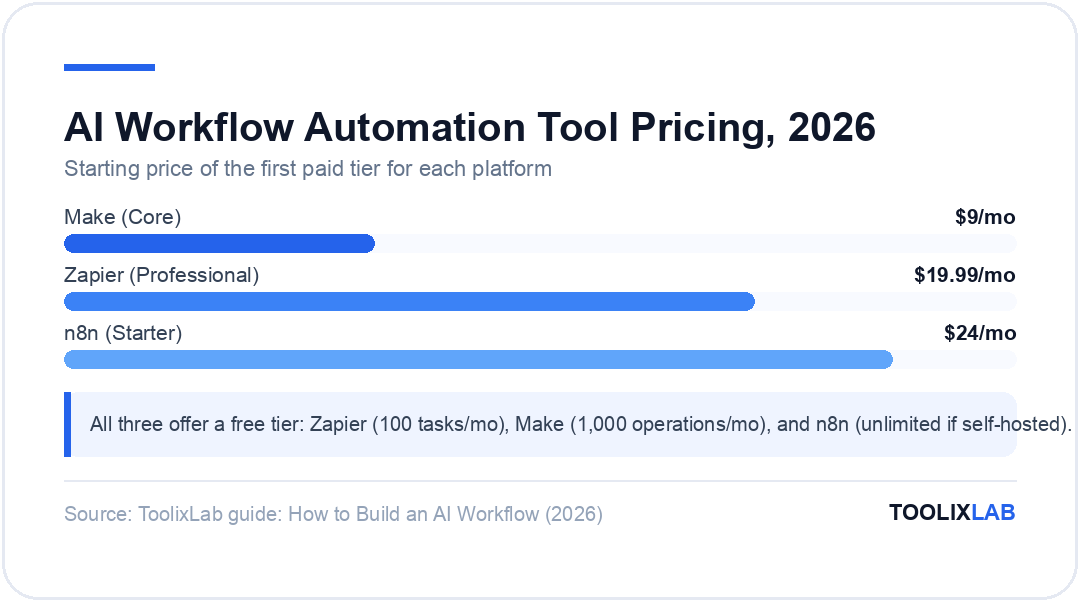
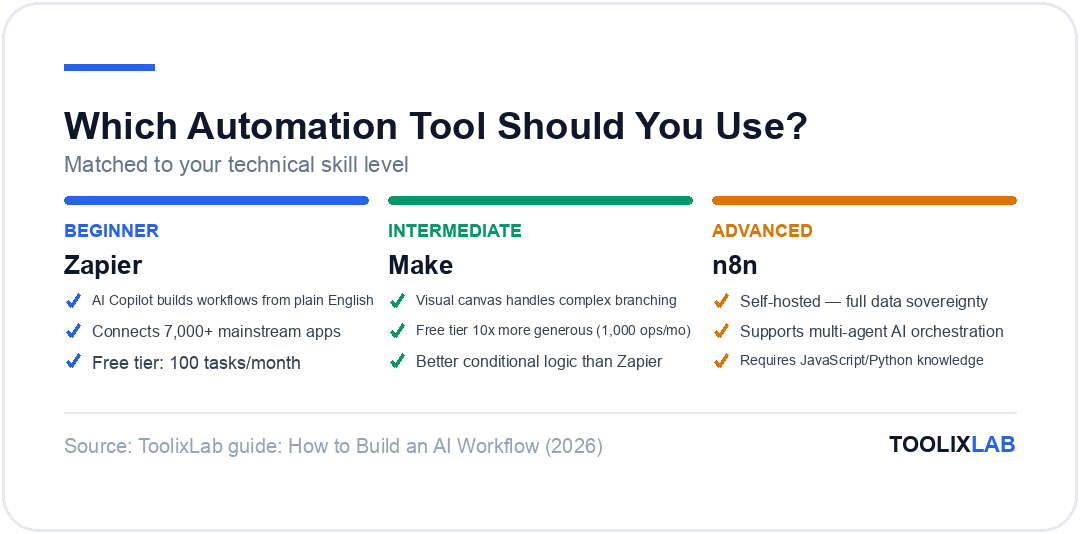
The three main tools for building AI workflows are Zapier, Make, and n8n. They're not interchangeable — each is genuinely better for a specific type of user.
Zapier — Best for Beginners and Non-Technical Users
Zapier is the most beginner-friendly automation platform available. Its AI Copilot lets you describe a workflow in plain English and builds most of it for you. The interface is approachable, the documentation is extensive, and support is genuinely good.
Choose Zapier if:
- You've never built an automation before
- You need to get something working fast without a learning curve
- Your workflows connect mainstream apps (Gmail, Slack, Notion, HubSpot, Airtable)
- You're not comfortable with logic, conditionals, or data transformation
Limitations: The free tier is genuinely restrictive at 100 tasks/month. Complex conditional logic (if X then Y else Z) requires paid plans. Custom API connections are less flexible than Make or n8n.
Pricing: Free (100 tasks/month), Professional $19.99/month (750 tasks), Team $69/month
For a full breakdown, see our Zapier vs Make vs n8n comparison.
Make (formerly Integromat) — Best for Intermediate Users
Make sits between Zapier and n8n in complexity and capability. Its visual canvas-based interface makes even complex, multi-branch workflows comprehensible at a glance. It handles conditional logic, data transformation, and error management better than Zapier — and its free tier (1,000 operations/month) is 10× more generous.
Choose Make if:
- You've tried Zapier and hit its limits
- You need conditional branching or multi-path workflows
- You want better data transformation without writing code
- Cost efficiency matters — Make's pricing scales better than Zapier's for high-volume workflows
Limitations: Steeper learning curve than Zapier. Some technical concepts (JSON, iterators, aggregators) appear in more complex workflows.
Pricing: Free (1,000 operations/month), Core $9/month, Pro $16/month, Teams $29/month
n8n — Best for Technical Users Who Want Full Control
n8n is the most powerful of the three — and the most technically demanding. It's open-source, can be self-hosted (giving you full data sovereignty), and supports the most complex AI workflow architectures including LangChain integration, multi-agent orchestration, and custom AI pipelines.
Choose n8n if:
- You have JavaScript or Python knowledge
- Data privacy and self-hosting are requirements
- You're building complex AI agent workflows with memory and reasoning
- You're a developer who wants flexibility over convenience
Limitations: Not beginner-friendly. Requires self-hosting for the free unlimited tier (cloud version has limits). Community support rather than dedicated customer success.
Pricing: Community (self-hosted, unlimited), Starter $24/month, Pro $60/month
Quick Decision Guide
| Your profile | Use this |
|---|---|
| Complete beginner, just getting started | Zapier |
| Used Zapier, hit limits, not a developer | Make |
| Developer or technical user, want full control | n8n |
| Need to keep data on your own servers | n8n (self-hosted) |
| Need AI agents with memory and reasoning | n8n |
| Need to connect 7,000+ apps quickly | Zapier |
Build Your First Workflow: 30-Minute Quick Start
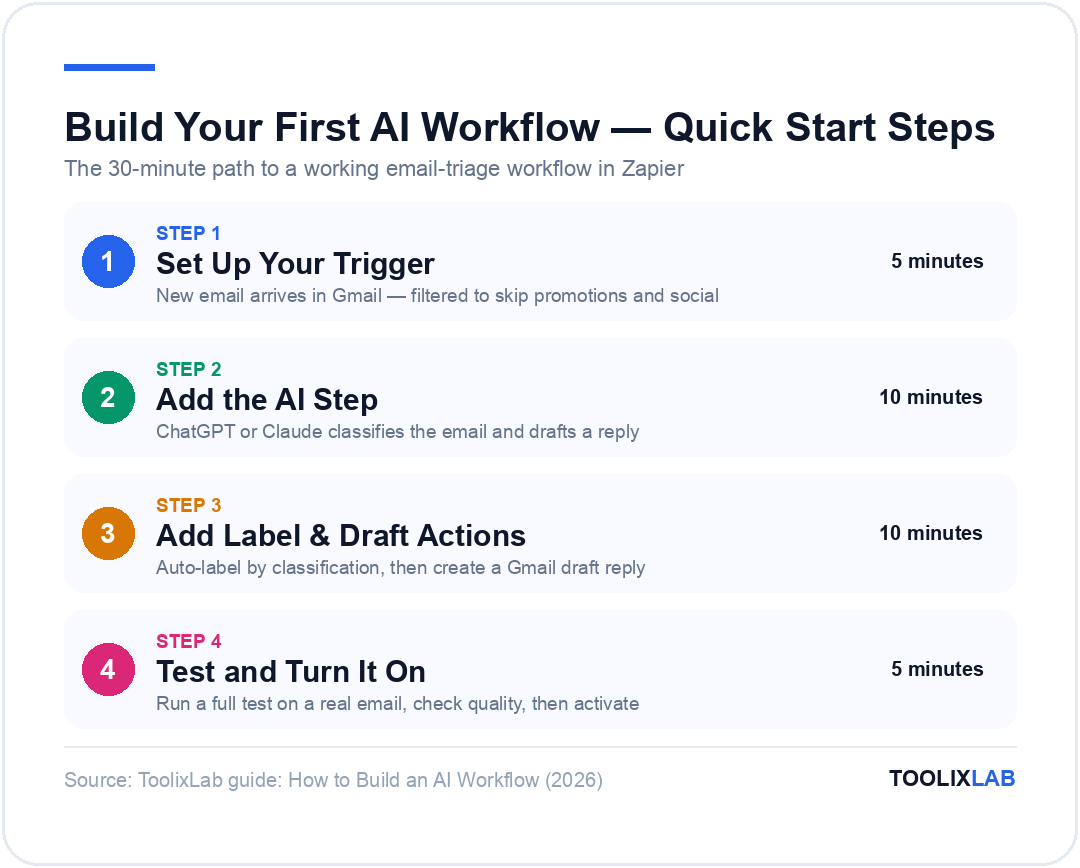
Let's build the email triage workflow (Workflow 2) in Zapier from scratch. This is the fastest high-value workflow to get running and gives you a clear foundation for building everything else.
What you need:
- A free Zapier account (zapier.com)
- A Gmail account
- A ChatGPT or Claude API key (Anthropic console or OpenAI platform — note: API access is paid, separate from chat subscriptions)
Step 1: Set up your trigger (5 minutes)
- Log into Zapier → click "Create Zap"
- Search for Gmail as your trigger app
- Select "New Email" as the trigger event
- Connect your Gmail account
- Set filters: only trigger on emails to your primary inbox (not promotions or social)
- Test the trigger — Zapier will pull in a recent email as sample data
Step 2: Add the AI step (10 minutes)
- Click the "+" button to add an action
- Search for "ChatGPT" or "Claude AI by Anthropic"
- Select "Send Message" (ChatGPT) or "Create Message" (Claude)
- Connect your API key
- In the prompt field, paste this template and map the dynamic fields from your Gmail trigger:
Classify this email and draft a response if needed.

Email from: [Sender Name]
Subject: [Subject]
Body: [Body Plain]

Tasks:
1) Classify as one of: New inquiry / Client question / Invoice /
   Meeting request / FYI only / Requires no response
2) Priority: High / Medium / Low
3) If response needed, draft a reply in professional but warm tone.
   Keep under 150 words.

Format your response exactly as:
Classification: [type]
Priority: [level]
Draft: [response or "No response required"]- Test this step — you should see a structured response for your sample email
Step 3: Add the label action (5 minutes)
- Add another action step → Gmail → "Add Label to Email"
- Map the email from Step 1
- Use a conditional path (Zapier Paths, requires Starter plan) to apply different labels based on the Classification from Step 2
- If you're on the free plan, set a single label "AI Reviewed" for now and sort manually
Step 4: Add the draft creation action (5 minutes)
- Add another action → Gmail → "Create Draft"
- Set "To" as the original sender's email address
- Set "Subject" as "Re: [original subject]"
- Set "Body" as the "Draft" field from your AI step output
- Add a filter: only create a draft if the Classification is NOT "FYI only" and NOT "Requires no response"
Step 5: Test and turn on (5 minutes)
- Run a full test with a real email
- Check that the label was applied and the draft was created
- Review the draft quality — adjust your prompt if needed
- Turn the Zap on
You're done. Every new email now gets classified, labelled, and has an AI draft waiting for you. Your job is to review and send, not to write from scratch.
5 Common Mistakes When Building AI Workflows
❌ 1. Building Without Mapping First
Jumping into the automation tool without a clear plan produces confused, half-built workflows. Always map trigger → input → AI step → output → action before you open the tool.
❌ 2. Prompts That Try to Do Too Much
An AI step that's asked to research, analyse, classify, write, and format in one prompt produces inconsistent results. Break complex processes into multiple focused AI steps — each one doing one thing well.
❌ 3. No Error Handling
What happens when the AI returns an unexpected format, an API call fails, or a connected app is unavailable? Without error handling, your workflow silently breaks. Add a notification step (Slack or email) that fires when a workflow fails — so you know when something goes wrong.
❌ 4. Setting AI Actions to Auto-Send
Never set a workflow to automatically send emails, post to social media, or take irreversible actions based purely on AI output — especially early in testing. Build in a human review step: create a draft, a pending queue, or a Slack approval message. Once you've seen the workflow perform reliably for 2–3 weeks, consider reducing the review requirement.
❌ 5. Over-Engineering Before Validating
The best workflow is the one that runs. Don't spend a week building the perfect 12-step content operation system before you've validated that the core AI step produces useful output. Build the minimum viable version — trigger, one AI step, one action — test it for a week, then expand.
Frequently Asked Questions
Do I need to know how to code to build AI workflows?
No — genuinely. Zapier and Make are designed for non-technical users. You connect apps, write prompts, and map fields between steps using a visual interface. The only thing that requires care is writing good AI prompts — which is a skill anyone can learn, not a technical one. n8n is the exception: it's significantly more powerful but requires at least basic technical comfort.
How much do AI workflows cost to run?
The cost has two components: the automation platform (Zapier/Make/n8n) and the AI API calls. Zapier's free tier (100 tasks/month) covers simple workflows; paid plans start at $19.99/month. AI API costs are typically very low — a Claude or ChatGPT API call for a 500-word prompt costs fractions of a cent. A workflow running 500 times per month might cost $2–5 in API fees. For most use cases, total running cost is under $30/month.
What's the difference between an AI workflow and an AI agent?
An AI workflow follows a defined sequence of steps you've mapped in advance — it's deterministic and predictable. An AI agent is more autonomous: it decides which actions to take based on its reasoning, can use tools, and can adjust its approach mid-task. Workflows are better for repeatable, structured processes. Agents are better for open-ended tasks where the path isn't known in advance. Most beginners should start with workflows.
Which AI model is best for workflow automation — ChatGPT, Claude, or Gemini?
It depends on the task. Claude produces the most consistent, structured outputs for text-heavy workflows (briefs, emails, reports) — its instruction-following is excellent for automation contexts. ChatGPT's API is the most mature and has the widest integration support across automation tools. Gemini's API integrates natively with Google Workspace via Apps Script. For most workflows, Claude's API is the best choice for output quality; ChatGPT's API for breadth of integration.
Can I build AI workflows without paying for API access?
Some automation tools (Zapier, Make) have built-in AI features that don't require a separate API key — Zapier's "AI by Zapier" step uses credits included in paid plans. However, these built-in options are less customisable than using the Claude or ChatGPT API directly. For the most flexible, high-quality workflows, a direct API connection is worth the small additional cost.
What should I automate first?
Start with the task you do most often and find most tedious. For most knowledge workers, that's email — which is why Workflow 2 (email triage) is the best starting point. It delivers immediate, daily value, it's straightforward to build, and the improvement in your inbox experience is noticeable from day one. Once that's running, identify your next most repetitive task and build the next workflow.
Conclusion: Start Small, Think in Systems
The shift from "using AI tools" to "running AI workflows" is one of the highest-leverage changes a professional can make in 2026. But it doesn't require building a complex 15-step operation on day one.
Start with one workflow. Pick the most repetitive task in your week, map the five building blocks, and build the minimum viable version in Zapier this afternoon. Let it run for a week. Iterate. Then build the next one.
The professionals who are 10× more productive aren't working harder or using better AI models. They've spent 20 hours over the past six months building workflows — and those workflows now save them 12 hours every week.
The compound value of a well-built workflow is extraordinary: you build it once, and it runs thousands of times.
🚀 Your Action Plan
- Pick one of the 5 workflow blueprints above that addresses your biggest time drain
- Map it using the 6 questions in the "Before You Build" section
- Sign up for a free Zapier account if you haven't already
- Build the minimum viable version — trigger, one AI step, one action
- Test it on real data for one week, then expand
Continue reading:
- 🔗 How to Use Claude AI in 2026 — the best AI model for workflow automation prompts
- 🔗 How to Use ChatGPT in 2026 — ChatGPT's API is the most widely supported in automation tools
- 🔗 Zapier vs Make vs n8n: Full Comparison — choose the right automation platform for your needs
- 🔗 Best AI Tools for Freelancers in 2026 — the full stack that feeds into your AI workflows
- 🔗 20 Best AI Tools for Small Business in 2026 — scaling workflows across a team
Tool pricing and features verified February 2026. Visit each platform's pricing page for current rates.