
Step-by-step guide to using Google Gemini in 2026. Covers account setup, Gems, Deep Research, Gemini Live, Google Workspace integration, Free vs Pro vs Ultra pricing, and 10 real-world use cases.
By ToolixLab Research Team | Automation Expert | February 2026
⚡ What You'll Learn
- How to set up Gemini in under 2 minutes — and access it everywhere
- 10 practical use cases with real prompts you can copy immediately
- How to use 2026 features: Deep Research, Gems, Gemini Live, Project Mariner, and Veo 3
- Free vs AI Plus vs AI Pro vs AI Ultra: Which plan is actually right for you?
- How to use Gemini inside Google Workspace — Gmail, Docs, Sheets, Slides, and Drive
If you use Gmail, Google Docs, Google Drive, or an Android phone, you already have access to one of the most powerful AI assistants available in 2026 — and most people haven't unlocked even a fraction of what it can do.
Google Gemini isn't just a chatbot. It's an AI that's woven directly into the tools billions of people use every day. Ask it to summarise your emails, analyse a spreadsheet, generate a video, browse the web autonomously, or write a presentation from a one-line brief — all without switching apps or learning a new interface.
That native integration is Gemini's biggest and most underappreciated advantage. While ChatGPT and Claude require copy-pasting content back and forth, Gemini sits inside your workflow. It reads your documents, drafts your emails, and helps you think — right where the work is happening.
This guide will take you from complete beginner to confident Gemini user. By the end, you'll know how to set up your account, master the interface, use Gemini's most powerful 2026 features, and understand which plan — if any — is worth upgrading to.
🔗 Exploring your AI options? See how Gemini compares in our ChatGPT vs Claude vs Gemini comparison, or start with our How to Use ChatGPT and How to Use Claude AI guides.
What is Google Gemini? (The 60-Second Explanation)

Google Gemini is Google's AI assistant and model family, developed by Google DeepMind. It's available as a standalone app at gemini.google.com, embedded into Google Workspace (Gmail, Docs, Sheets, Slides, Drive), built into Android, and integrated into Google Search.
What makes Gemini distinct from other AI assistants is its ecosystem depth. Google has 15+ years of data, infrastructure, and products to integrate with — and Gemini sits at the centre of all of it. No other AI assistant can natively access your Gmail, search Google in real time, generate videos with Veo 3, or browse the web autonomously via Project Mariner with the same level of integration.
📊 Gemini by the Numbers (February 2026)
- 350 million+ users worldwide
- 1 million token context window on Pro and Ultra — process entire books in one session
- Available in 160+ countries across web, iOS, Android, and Google Workspace
- Current models: Gemini 2.5 Pro, Gemini 2.5 Flash
- Multimodal: text, voice, images, video, code, and files
- College students get AI Pro free for one year
Where Gemini wins:
- Native Google Workspace integration (Gmail, Docs, Sheets, Slides, Drive)
- Largest context window at the consumer tier — 1 million tokens
- Video generation via Veo 3 (most advanced consumer video AI available)
- Most generous free tier among major AI assistants
- Agentic browsing via Project Mariner (Ultra)
Where Gemini has limitations:
- Writing quality, while strong, is generally ranked below Claude for long-form content
- Memory and personalisation are less mature than ChatGPT's
- Workspace integration requires AI Pro or above — the free tier doesn't include it
- Ultra at $249.99/month is significantly more expensive than competitors
For a full comparison across tools, see our ChatGPT vs Claude vs Gemini breakdown.
Getting Started: Set Up Gemini in 2 Minutes
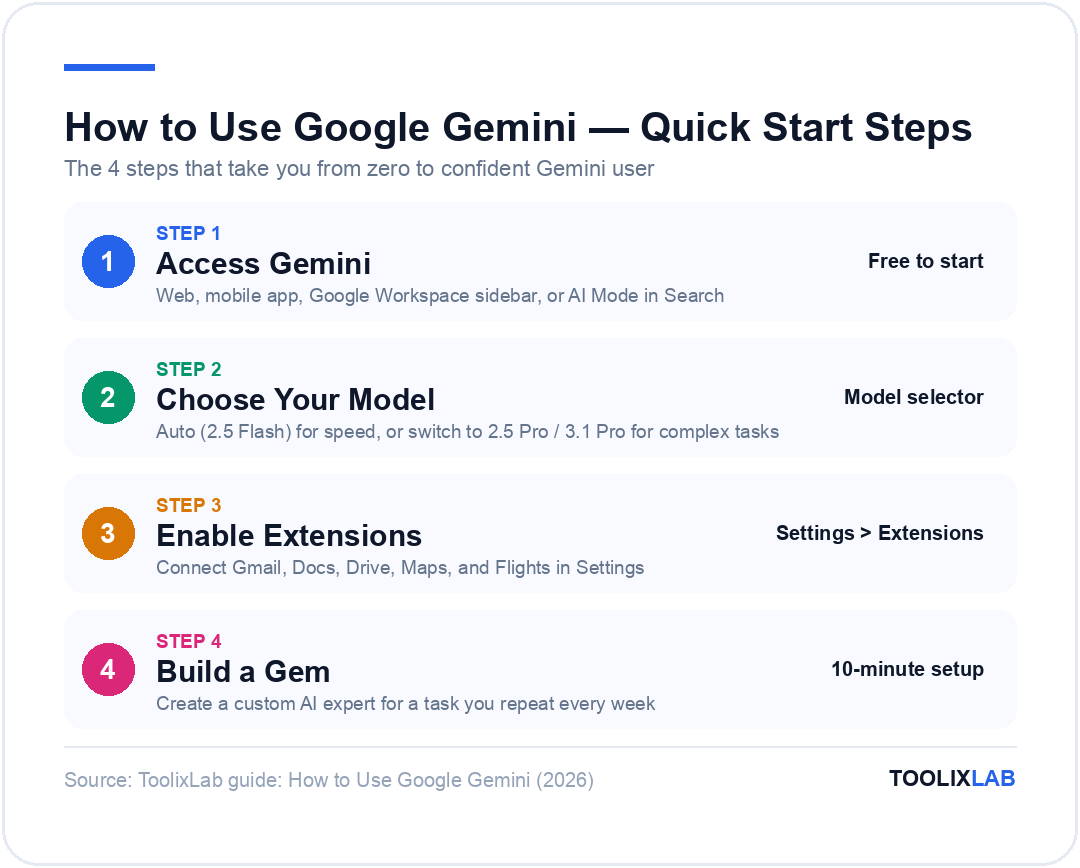
Step 1: Access Gemini
You have four ways to access Gemini, depending on where you want to use it:
- Web: Go to gemini.google.com — sign in with your Google account
- Mobile: Download the Gemini app on iOS or Android (replaces the Google Assistant on Android)
- Google Workspace: Open Gmail, Docs, Sheets, or Slides — look for the Gemini icon in the sidebar (AI Pro required)
- Google Search: Gemini powers AI Overviews and AI Mode directly in search results
💡 Pro tip: If you're on Android, replace Google Assistant with Gemini as your default assistant. Go to Settings → Apps → Default Apps → Digital assistant app → Gemini. This gives you instant AI access from anywhere on your phone.
Step 2: Choose your model
When you open Gemini on the web or app, you'll see a model selector at the top. Here's what each option means:
- Auto (Gemini 2.5 Flash): The default — fast, efficient, great for everyday tasks and quick questions
- Gemini 2.5 Pro: Google's most intelligent model, best for complex reasoning, research, and analysis (limited daily uses on free)
- Gemini 2.5 Pro: The latest, most capable model — available on AI Pro and Ultra plans
For most tasks, start with Auto. Switch to Gemini 2.5 Pro or 3.1 Pro when you're tackling something complex — research, coding, multi-step analysis.
Step 3: Start your first conversation
Type anything to get started. Here are three good first prompts:
- "Summarise the key points of [paste any article or text]"
- "Explain the difference between machine learning and deep learning in plain English"
- "Help me write a professional reply to this email: [paste email]"
Understanding the Gemini Interface

The Gemini interface is clean and intuitive. Key elements to know:
The main interface:
- Chat area — your conversation thread, with multimodal input support (text, images, files, voice)
- Message input — type, paste, upload files, or use the microphone for voice
- Model selector — switch between Auto, Gemini 2.5 Pro, and 3.1 Pro (top of screen)
- Gems — custom AI experts you've created or saved (left sidebar)
- Recent chats — access and continue previous conversations
- Extensions — connect Gemini to Google apps, YouTube, Flights, Hotels, Maps (left sidebar)
One key difference from ChatGPT and Claude: Gemini's Extensions system connects it natively to Google services. When you enable the Google Workspace extension, Gemini can read your actual emails, calendar, and documents — not just content you paste in. This is a fundamentally different level of integration.
10 Powerful Things You Can Do with Gemini

Here are 10 use cases with prompts you can copy and use immediately.
📧 1. Manage and Summarise Your Gmail (AI Pro)
This is Gemini's most immediately practical capability for professionals. With the Google Workspace extension enabled on AI Pro, Gemini can read your inbox and answer questions about it directly.
Example prompts:
"Summarise all unread emails from this week. Flag anything that requires a response today."
"Find all emails from [Client Name] in the past month and give me a brief on where our conversation stands."
"Draft a reply to the most recent email from [Name] confirming the meeting and asking for the agenda."
⚠️ Note: Gemini accessing your Gmail requires enabling the Google Workspace extension in Settings and an AI Pro subscription. The free tier does not include Workspace integration.
📄 2. Work Inside Google Docs
Instead of copy-pasting content into a separate AI interface, Gemini works directly inside Google Docs. Open any document, click the Gemini icon in the sidebar, and interact with the document content in context.
Example prompts inside Docs:
"Rewrite the third paragraph to be more concise and direct."
"This is a first draft of a client proposal. Identify the three weakest sections and suggest how to improve each."
"Add a section on implementation timeline between the budget and conclusion sections."
💡 Pro tip: Use the "Help me write" button at the top of a blank Doc to generate full documents from a brief prompt. Describe what you need — audience, purpose, length, tone — and Gemini will generate a complete first draft.
📊 3. Analyse Data in Google Sheets
Gemini in Sheets is one of its most underused but highest-value features. Paste or upload data and ask questions in natural language — no formulas required.
Example prompts inside Sheets:
"Analyse this sales data. Which product category has the highest growth rate over the past 6 months?"
"Create a chart showing monthly revenue trends from this data."
"Flag all rows where the value in column C is more than 20% below the average."
For freelancers, consultants, and analysts who spend hours in spreadsheets, this is a significant time saver.
🔬 4. Deep Research — Multi-Page Reports in Minutes
Deep Research is Gemini's most powerful standalone feature and directly comparable to similar capabilities in ChatGPT and Perplexity. When triggered, it runs a multi-step research process — performing hundreds of searches, reading dozens of sources, reasoning across the findings — and produces a comprehensive, cited report.
Available on AI Pro and Ultra, Deep Research typically takes 2–5 minutes but produces outputs that would take a human researcher hours.
Example prompts:
"Produce a comprehensive analysis of the electric vehicle market in Europe in 2026, covering key players, market share, regulatory landscape, and growth projections."
"Research the competitive landscape for project management SaaS tools. Focus on positioning, pricing strategies, and gaps in the market."
💡 Pro tip: Be as specific as possible about scope, geography, timeframe, and what you want the report to cover. Vague prompts produce vague research. Specific prompts produce specific reports.
For dedicated research workflows, also see our Perplexity AI Review — Perplexity and Gemini Deep Research have different strengths worth understanding.
🎙️ 5. Gemini Live — Real-Time Voice Conversation
Gemini Live is Google's answer to ChatGPT's Voice Mode — a real-time, low-latency voice conversation with the AI. Unlike basic voice input (speak → transcribe → respond), Gemini Live maintains a natural conversational flow, understands interruptions, and responds in a human-like voice.
Available on mobile (iOS and Android) and on web for AI Pro users. Particularly useful for:
- Hands-free brainstorming while commuting or walking
- Practising for presentations, interviews, or difficult conversations
- Quick research and questions without opening a computer
- Language practice in any of Gemini's 40+ supported languages
To start: Open the Gemini app on mobile → tap the microphone icon → switch to the Live tab
🎬 6. Generate Videos with Veo 3 (AI Pro / Ultra)
Video generation is where Gemini has a significant advantage over every competitor. Veo 3 — Google's video generation model — produces cinematic, high-quality video clips from text descriptions, with audio. Neither ChatGPT nor Claude offers anything comparable at the consumer tier.
Access Veo 3 through Flow — Google's AI filmmaking suite — available in the Gemini interface.
Example prompts:
"Create a 10-second cinematic clip of a sunrise over a mountain lake, early morning mist, golden hour lighting."
"Generate a product demo video showing a smartphone being used in different environments — office, outdoors, cafe."
⚠️ Note: AI Pro gets limited access to Veo 3.1. AI Ultra gets higher limits and access to the full Veo 3.1 model. Free users get very limited image generation via Imagen in the US.
🖼️ 7. Generate and Edit Images (AI Pro)
Beyond video, Gemini can generate high-quality images via Imagen and remix existing images in Whisk — Google's AI image editing tool.
Example prompts:
"Generate a professional banner image for a marketing agency's LinkedIn page — clean, modern, navy and white colour scheme."
"Create a series of 4 social media post images for a coffee brand — consistent aesthetic, warm tones, lifestyle photography style."
AI Pro subscribers get meaningful monthly AI Credits for image and video generation. Additional credits can be purchased as top-ups.
🤖 8. Gems — Build Your Own Custom AI Experts
Gems are Gemini's version of custom AI assistants — pre-configured AI experts you create for specific recurring tasks. Think of a Gem as a specialist you've briefed once and can return to any time.
Examples of useful Gems for professionals:
- Client brief analyser — upload a brief, get a structured breakdown every time
- Email tone checker — reviews drafts for tone before you send
- Meeting prep assistant — given a meeting invite, produces a briefing document
- Content repurposer — takes a long article and creates social posts, email newsletters, and LinkedIn summaries
To create a Gem: Go to gemini.google.com/gems → New Gem → Give it a name, instructions, and any reference documents → Save
Available to all users. AI Pro unlocks more powerful underlying models within Gems.
🌐 9. Project Mariner — Agentic Web Browsing (Ultra)
Project Mariner is one of Gemini's most forward-looking 2026 features: an AI agent that can browse the web autonomously and complete multi-step tasks on your behalf. Unlike standard web search (where the AI reads and summarises), Project Mariner can actually act — clicking, filling forms, extracting data, and completing workflows across websites.
Example use cases:
- Research and book a flight and hotel across multiple travel sites
- Monitor competitor pricing across e-commerce sites
- Complete a multi-step form submission on your behalf
- Extract structured data from multiple web pages into a spreadsheet
Currently available to AI Ultra subscribers in the US, with broader rollout in progress. It can perform 10 tasks simultaneously.
💻 10. Code with Jules — AI Coding Agent (Ultra)
Jules is Gemini's autonomous coding agent — built for developers who want AI that doesn't just write snippets but understands entire projects. Built on Gemini 2.5 Pro, Jules reads your codebase, understands your intent, writes and runs tests, tackles multiple tasks at once, and can be assigned entire features or bug fixes to complete autonomously.
Available within Google's Antigravity agentic development platform. AI Pro gets standard limits; AI Ultra gets the highest daily request limits for intensive workflows.
For developer freelancers choosing between AI coding tools, see our comparison of coding assistants in the Best AI Tools for Freelancers guide.
Mastering Gemini Prompts: 5 Techniques That Work
Gemini, like all AI assistants, responds dramatically better to well-structured prompts. Here are five techniques that consistently improve output quality.
1. Give Gemini a Role
Start prompts with a role assignment. Gemini calibrates its response style and depth accordingly.
"Act as a senior financial analyst. Review this business plan and identify the three biggest risks to the revenue projections."
2. Specify the Output Format
Gemini defaults to flowing prose. If you want a table, a list, a structured report, or bullet points — ask for it explicitly.
"Give me the answer as a comparison table with columns: Feature, Free Plan, AI Pro, AI Ultra."
3. Set the Audience
Telling Gemini who will read the output changes its language, complexity, and assumptions.
"Explain this to a non-technical marketing director who knows nothing about APIs."
4. Use Constraints Productively
Telling Gemini what not to do is as useful as telling it what to do.
"Keep the response under 200 words. Don't use bullet points. Avoid technical jargon."
5. Iterate, Don't Restart
Gemini remembers the full conversation. Build on previous responses rather than starting fresh.
"Good. Now make the tone more formal and add a section on implementation timeline."
5 Copy-Paste Prompt Templates
Template 1 — Analysis:
"Act as [ROLE]. Analyse [SUBJECT] and give me: 1) [First output], 2) [Second output], 3) [Third output]. Keep the response under [LENGTH]."
Template 2 — Document work:
"Here is a [DOCUMENT TYPE]. [SPECIFIC INSTRUCTION]. Focus on [SPECIFIC ASPECT]. Audience: [AUDIENCE]."
Template 3 — Writing:
"Write a [FORMAT] about [TOPIC] for [AUDIENCE]. Tone: [TONE]. Length: [LENGTH]. Include: [SPECIFIC ELEMENTS]."
Template 4 — Research:
"Research [TOPIC] and produce a [TYPE OF REPORT]. Focus on [SPECIFIC ANGLE]. Time period: [DATE RANGE]. Include sources."
Template 5 — Google Workspace (with extension enabled):
"Search my emails from [PERSON/COMPANY] in the past [TIMEFRAME] and summarise where we stand on [TOPIC]."
2026 Gemini Features: Complete Overview
Here's the full picture of what's available in 2026 — beyond the use cases above.
NotebookLM
Google's AI research notebook, now deeply integrated with Gemini. Upload up to 50 sources (PDFs, web pages, YouTube videos, Google Docs), and NotebookLM creates a personalised AI expert on that content. Its Audio Overview feature generates a podcast-style conversation between two AI voices discussing your documents — surprisingly useful for absorbing dense material. AI Pro subscribers get 5× more audio overviews and enhanced notebook features.
Gemini in Google Search (AI Mode)
AI Mode in Google Search is Gemini's answer to Perplexity — a search experience that generates direct, cited answers rather than just links. Available in the US, with AI Pro users getting Deep Search for more sophisticated queries and longer, more detailed responses.
Extensions
Gemini's Extensions connect it to live Google services. Enable them in Settings → Extensions:
- Google Workspace — Gmail, Docs, Drive, Calendar (AI Pro required for full integration)
- Google Maps — location queries and directions
- Google Flights & Hotels — travel research and booking
- YouTube — search and summarise YouTube videos
- Google Finance — market data and financial queries
Memory
Gemini remembers your preferences, past conversations, and important details across sessions — personalising responses over time. Managed in Settings → Memory. Available on all plans.
Gemini on Android
On Android devices, Gemini has replaced Google Assistant as the default AI assistant. Long-press the home button or say "Hey Google" to access Gemini hands-free. It can see your screen, describe what's on it, and take action — making it one of the most capable on-device AI experiences available.
Google Vids (AI Pro)
Google's AI-powered video creation app for business and presentation-style videos. Create, write, produce, and edit videos directly — integrated with Google Workspace for team collaboration.
Free vs AI Plus vs AI Pro vs AI Ultra: Complete Pricing Breakdown

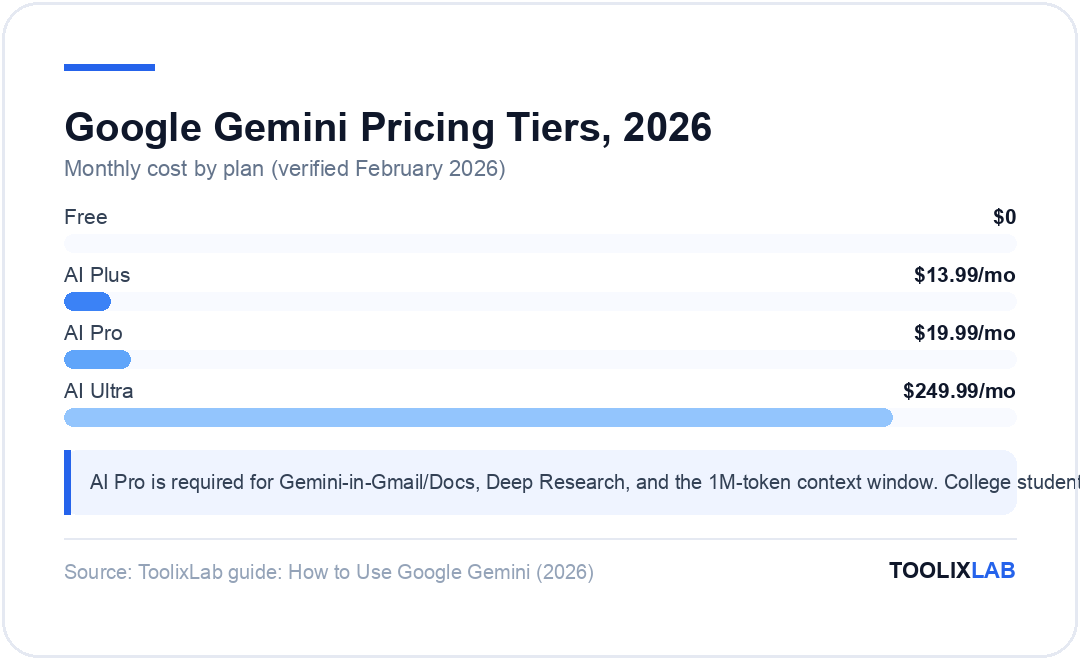
Google has restructured its AI plans significantly in 2025–2026. Here's the full picture as of February 2026:
| Feature | Free | AI Plus ($13.99/mo) | AI Pro ($19.99/mo) | AI Ultra ($249.99/mo) |
|---|---|---|---|---|
| Default model | Gemini 2.5 Flash | Gemini 2.5 Flash + higher limits | Gemini 2.5 Pro | Gemini 2.5 Pro (highest) |
| Gemini 2.5 Pro access | Limited (~5-10/day) | Higher limits | Higher limits | Highest limits |
| Context window | 32K tokens | 128K tokens | 1M tokens | 1M tokens |
| Deep Research | ✗ | ✗ | ✓ | ✓ (highest limits) |
| Gemini Live (voice) | ✓ (limited) | ✓ | ✓ | ✓ |
| Image generation | ✓ US only (limited) | ✓ | ✓ Higher limits | ✓ Highest limits |
| Video generation (Veo 3) | ✗ | Limited | ✓ Veo 3.1 (limited) | ✓ Veo 3.1 (more) |
| Gems | ✓ | ✓ | ✓ (more powerful) | ✓ (most powerful) |
| NotebookLM | Standard | Standard | Enhanced (5× audio) | Enhanced |
| Gemini in Gmail & Docs | ✗ | ✗ | ✓ | ✓ |
| Gemini in Sheets & Slides | ✗ | ✗ | ✓ | ✓ |
| Google Vids | ✗ | ✗ | ✓ | ✓ |
| Project Mariner (agentic browser) | ✗ | ✗ | ✗ | ✓ (US) |
| Jules (coding agent) | ✗ | ✗ | Standard limits | Highest limits |
| Google One storage | 15GB | 200GB | 2TB | 30TB |
| YouTube Premium | ✗ | ✗ | ✗ | ✓ |
| Family sharing | ✗ | ✓ | ✓ | ✓ |
AI Pro is $17/month billed annually. AI Ultra has a 50% discount for first 3 months for new subscribers. College students get AI Pro free for one year. Pricing verified February 2026 — visit gemini.google/subscriptions for current rates.
💡 Which plan should you choose?
Stay on Free if you're exploring Gemini casually. The free tier is the most generous among major AI assistants — unlimited Gemini 2.5 Flash, some Gemini 2.5 Pro access, and basic image generation.
Choose AI Plus ($13.99/month) if you want meaningfully higher limits without paying $20/month, and don't need Workspace integration or Deep Research. The 200GB storage bump also makes this good value if you're near your free Google storage limit.
Choose AI Pro ($19.99/month) if you work in Google Workspace daily. The Gemini-in-Gmail and Gemini-in-Docs integration is worth the $20/month alone for professionals who live in Google's apps. Deep Research and 1M context window are significant extras.
Choose AI Ultra ($249.99/month) only if you're a power user who needs Project Mariner (agentic browsing), the highest Jules coding limits, maximum video generation, and 30TB of storage. Most individuals should start with AI Pro. Ultra is priced for power professionals and enterprises — the jump from $20 to $250 is steep.
5 Common Mistakes to Avoid
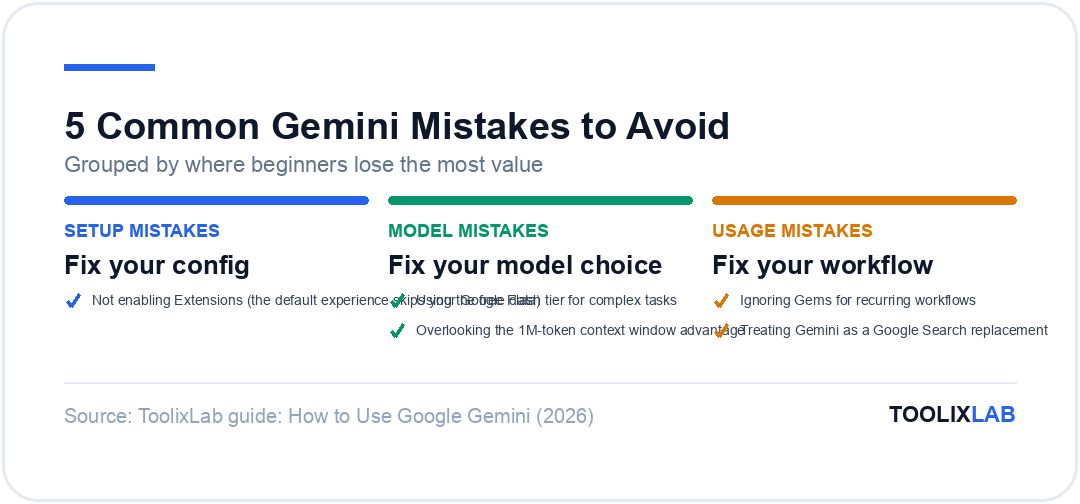
🚫 1. Not Enabling Extensions
The default Gemini experience doesn't connect to your Google data. Extensions — especially the Google Workspace extension — are what unlock the most valuable functionality. Go to Settings → Extensions → Enable the ones relevant to you.
🚫 2. Using the Free Tier for Complex Tasks
Gemini 2.5 Flash (the free default) is fast and capable for simple tasks but noticeably less powerful for complex analysis, long documents, and deep research. For anything important, switch to Gemini 2.5 Pro in the model selector — you get a limited daily allowance even on the free tier.
🚫 3. Ignoring Gems for Recurring Workflows
If you do the same type of task more than twice a week — summarising a certain type of document, drafting a certain type of email, analysing a certain type of data — build a Gem for it. The setup takes 10 minutes; the time saved compounds every week.
🚫 4. Treating Gemini as a Google Search Replacement
Gemini and Google Search serve different purposes. Search is better for finding specific pages, navigating the web, and verifying simple facts quickly. Gemini is better for synthesis, analysis, creation, and working with your own documents. Use each for what it's built for.
🚫 5. Overlooking the Context Window Advantage
Gemini AI Pro's 1-million-token context window is genuinely extraordinary — equivalent to approximately 1,500 pages of text in a single conversation. If you work with lengthy documents, large codebases, or need to analyse extensive datasets, this alone differentiates Gemini from the competition. Most users never test this capability.
When to Use a Different AI Instead
Gemini is exceptional, but certain tasks are better served by other tools:
| If you need... | Consider instead | Why |
|---|---|---|
| Best long-form writing quality | Claude AI | Consistently more natural, less "AI-sounding" prose |
| Best coding quality | Claude Code | Higher SWE-Bench scores, better architectural thinking |
| Real-time research with citations | Perplexity AI | Purpose-built for cited, sourced answers |
| Persistent memory across all chats | ChatGPT | More mature memory system than Gemini |
| Broadest plugin ecosystem | ChatGPT | Largest third-party integration library |
| Budget-friendly research | Perplexity free tier | Unlimited Quick Searches at no cost |
For anyone not embedded in Google's ecosystem, Claude or ChatGPT may be a better daily driver — with Gemini as the specialist for video, large document processing, and Google Workspace tasks.
Gemini in the AI Ecosystem: Where It Fits
If you've read our How to Use ChatGPT and How to Use Claude AI guides, here's how to think about the three tools together:
Use Gemini as your primary AI if: You spend most of your day in Gmail, Google Docs, and Drive. The native integration creates a productivity advantage that ChatGPT and Claude can't match without extra steps.
Use Gemini as a specialist alongside ChatGPT or Claude if: You need video generation (Veo 3), processing of very large documents (1M context), or AI Mode in Google Search — while using another AI for your primary writing and creation.
Use Gemini to complement Perplexity if: You want the research accuracy of Perplexity combined with the creative and Workspace capabilities of Gemini — a powerful combination for research-heavy knowledge work.
Most serious AI users in 2026 run 2–3 tools in parallel rather than picking a single winner. The tools are differentiated enough that each earns its keep.
Frequently Asked Questions
Is Google Gemini free?
Yes. Gemini has a genuinely capable free tier — unlimited Gemini 2.5 Flash access, limited Gemini 2.5 Pro usage (~5-10 queries per day), basic image generation (US only), Gemini Live voice, and Gems. The free tier is more generous than Claude's and comparable to ChatGPT's. The main limitations are model power (3 Flash vs 3.1 Pro), no Workspace integration, no Deep Research, and a smaller 32K context window.
What's the difference between Gemini 2.5 Flash and Gemini 2.5 Pro?
Gemini 2.5 Flash is the default model — fast, efficient, excellent for everyday tasks, quick questions, and light analysis. Gemini 2.5 Pro is Google's most intelligent model — significantly better at complex reasoning, research, coding, and multi-step analysis. Use Flash for speed; switch to Pro or 3.1 Pro for your most demanding tasks.
Does Gemini work with Google Docs and Gmail?
Yes, but only on AI Pro ($19.99/month) and AI Ultra ($249.99/month) plans. Free and AI Plus users can use Gemini as a standalone assistant but cannot have Gemini read their Gmail or work inside Docs and Sheets directly. To enable it: upgrade to AI Pro → go to any Google Workspace app → click the Gemini icon in the sidebar.
What is Gemini Advanced?
"Gemini Advanced" was the previous name for the paid tier of Gemini, which included access to Google's most capable model. It has since been rebranded — **Google AI Pro** ($19.99/month) is the successor to Gemini Advanced, and **Google AI Ultra** ($249.99/month) is the new premium tier above it. If you had a Gemini Advanced subscription, you're now on AI Pro.
Is Gemini better than ChatGPT?
It depends on the task. Gemini is better for Google Workspace integration, processing very long documents (1M token context), and video generation. ChatGPT is better for general conversational AI, persistent memory, writing quality (with Claude the strongest for writing), and the broadest plugin ecosystem. For a full breakdown, see our ChatGPT vs Claude vs Gemini comparison.
Can Gemini generate images and videos?
Yes to both. Image generation (via Imagen) is available to AI Pro users and limited to US free users. Video generation via Veo 3 is available to AI Pro (limited) and AI Ultra (higher limits) subscribers through Google's Flow filmmaking tool. Veo 3 is currently the most capable consumer video generation model available from any AI provider.
What is Project Mariner?
Project Mariner is Gemini's agentic browser — an AI that can autonomously browse the web, click buttons, fill forms, and complete multi-step web tasks on your behalf. It can run up to 10 tasks simultaneously. Currently available to AI Ultra subscribers in the US, with broader rollout expected through 2026.
Conclusion: Start Using Gemini Today
Gemini's value proposition in 2026 is clear: if you live in Google's ecosystem — Gmail, Docs, Drive, Android — it's the AI that works where your work already happens. No copy-pasting, no tab-switching, no re-explaining context. The AI is just there, inside the tools you're already using.
For users outside Google's ecosystem, Gemini's free tier is generous enough to be worth exploring, and the 1-million-token context window and Veo 3 video generation are capabilities that genuinely differentiate it from the competition regardless of your existing setup.
🚀 Your 5-Minute Action Plan
- Go to gemini.google.com and sign in with your Google account
- Try a prompt using one of the templates from this guide
- Enable Extensions (Settings → Extensions → Google Workspace if on AI Pro)
- Build one Gem for a task you do repeatedly
- Test the model selector — run the same prompt on Gemini 2.5 Flash vs Gemini 2.5 Pro and compare
Continue your AI journey:
- 🔗 ChatGPT vs Claude vs Gemini: Full 2026 Comparison — Detailed head-to-head across all major AI tools
- 🔗 How to Use ChatGPT in 2026 — Master the most versatile AI assistant
- 🔗 How to Use Claude AI in 2026 — The best AI for writing and long-form content
- 🔗 Perplexity AI Review 2026 — The best AI research tool to pair with Gemini
- 🔗 15 Best ChatGPT Alternatives in 2026 — The full AI landscape
Pricing and features verified February 2026. Visit gemini.google/subscriptions and one.google.com/about/google-ai-plans for current information.