
In 2026, AI-powered coding tools have gone from novelty to necessity — and Cursor AI sits at the top of nearly every developer's shortlist. Built from the ground up as an AI-native code editor (not a plugin bolted onto VS Code), Cursor has attracted over 500,000 developers and generated serious buzz for its ability to understand entire codebases, not just the file you have open. But is it truly the best AI code editor available, or is the hype outpacing the reality? We spent weeks testing Cursor AI end-to-end so you can make an informed decision.
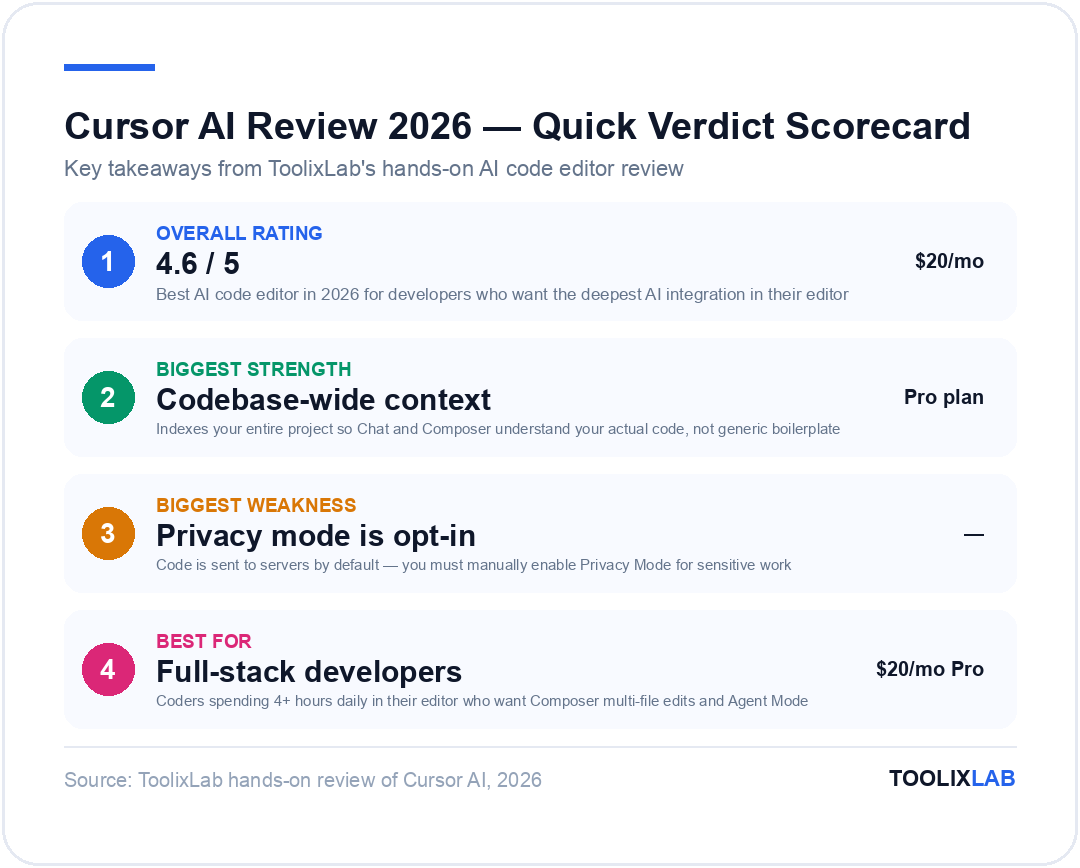
⚡ TL;DR — Cursor AI Review 2026
- ✓AI-native editor forked from VS Code — keeps all your extensions
- ✓Codebase-wide context window sets it apart from tab-autocomplete tools
- ✓Composer feature lets you write multi-file changes with a single prompt
- ✓Pro plan ($20/mo) unlocks GPT-5.4, Claude Sonnet 4.6, and unlimited fast completions
- ✗Steeper pricing than GitHub Copilot for teams
- ✗Privacy mode must be manually enabled — code is sent to servers by default
- ✗Free tier is generous but has hard usage caps
- →Verdict: Best AI code editor for individual developers and small teams who want deep AI integration without changing their workflow
What Is Cursor AI?
Cursor AI is an AI-first code editor developed by Anysphere, a startup founded in 2022. Rather than building a plugin or extension on top of an existing editor, the team forked VS Code and rebuilt it from the inside out with AI as the core primitive — not an afterthought. The result is an editor that looks and feels exactly like VS Code (complete with your themes, keybindings, and extensions), but with AI capabilities baked into every layer of the interface.
The distinguishing insight behind Cursor is that most AI coding tools treat code assistance as a single-file problem. You're in a file, you want a suggestion, you get one. Cursor instead indexes your entire project and uses that context to give suggestions, answer questions, and generate code that actually fits your existing codebase — not just generic boilerplate that happens to compile.
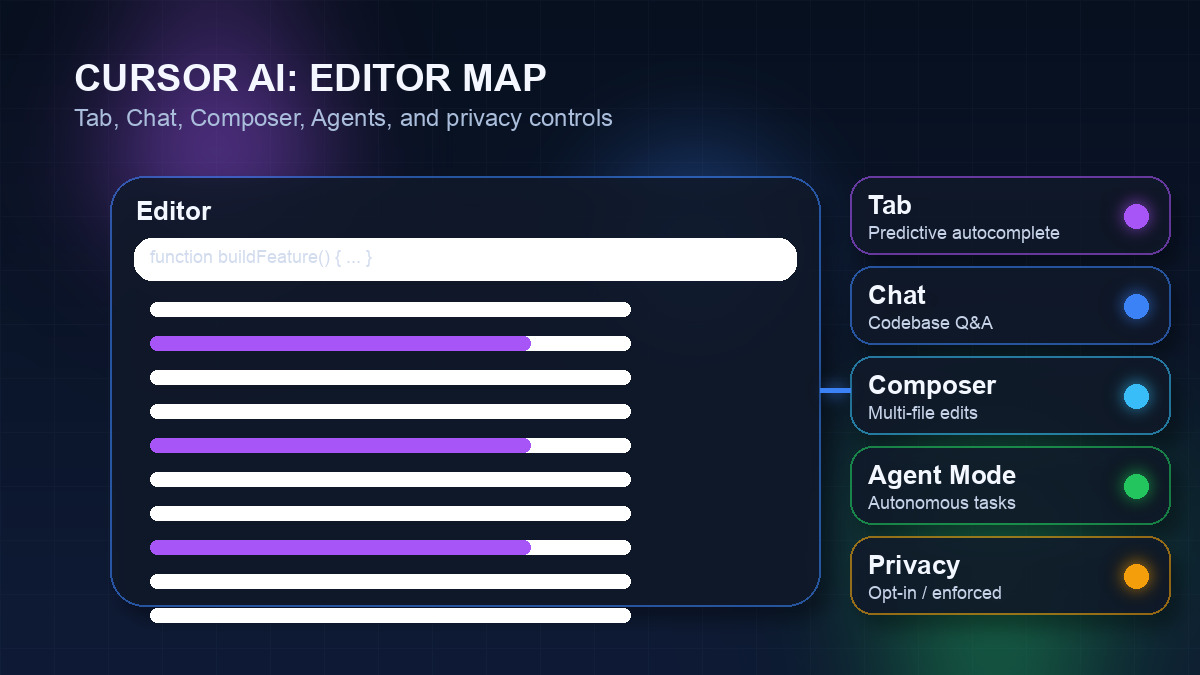
By 2026, Cursor has shipped several landmark features: the Composer (multi-file AI editing), Chat (codebase Q&A with citation), Tab (multi-line predictive autocomplete), and Agent Mode (autonomous task execution with tool use). The editor supports multiple underlying models including GPT-5.4, Claude Sonnet 4.6, Gemini 2.5 Pro, and Cursor's own fine-tuned models, giving you flexibility to pick the right intelligence for the right task.
Cursor raised a $60 million Series A in late 2024 and as of early 2026 is used by developers at companies including OpenAI, Stripe, Shopify, and Vercel — a strong signal that this is not just a hobbyist tool. It competes directly with GitHub Copilot, Codeium, and other AI coding assistants, but with a fundamentally different philosophy.
Cursor AI Key Features in 2026
Cursor's feature set has matured significantly since its early beta. Here's a breakdown of every major capability and how well each one actually works in practice.
1. Tab — Predictive Multi-Line Autocomplete
Cursor Tab is the always-on autocomplete engine. Unlike GitHub Copilot's single-suggestion model, Cursor Tab can predict multiple lines of code simultaneously and adapts to your recent edits to suggest what you're likely to type next. In our testing, Tab correctly inferred variable names, function signatures, and even entire loops based on context from elsewhere in the file.
The experience is subtle but powerful. Rather than offering a dramatic "AI" moment, Tab just makes you faster at every keystroke. Press Tab to accept, Escape to dismiss, or keep typing to refine. The acceptance rate we experienced was well above 60% on React and Python projects — meaningfully higher than any other autocomplete tool we've tested.
2. Chat — Codebase-Aware Q&A
Cursor Chat (Cmd+L / Ctrl+L) opens a sidebar chat where you can ask questions about your code. The critical difference from ChatGPT or other tools is that Chat has access to your indexed codebase. You can ask "How does authentication work in this project?" and get an accurate, cited answer pointing to specific files and line numbers — not a generic response about JWT tokens.
You can reference specific files with @filename, symbols with @symbol, documentation with @docs, or even web pages with @web for real-time context. The Chat can also directly apply suggested code changes to your files with a single click — no copy-paste.
3. Composer — Multi-File AI Editing
Composer (Cmd+I / Ctrl+I) is arguably Cursor's most powerful and differentiated feature. It allows you to describe a change you want to make — in natural language — and have Cursor implement that change across multiple files simultaneously. You can say "Add a dark mode toggle to the settings page and update the CSS variables accordingly" and watch Cursor modify three or four files in one go, showing diffs before you apply anything.
In practice, Composer handles small-to-medium features (adding a new endpoint, refactoring a component, wiring up a new database model) with impressive accuracy. For larger architectural changes, you'll want to break the task down, but the savings in back-and-forth are still substantial.
4. Agent Mode — Autonomous Task Execution
Agent Mode (introduced in late 2024, significantly improved in 2025) lets Cursor operate autonomously to complete multi-step coding tasks. You describe a goal, and the agent plans steps, reads files, writes code, runs terminal commands, reads error output, and iterates — all without you touching the keyboard. It's closer to a junior developer pair-programming asynchronously than a traditional autocomplete tool.
Agent Mode works well for scoped tasks: writing tests for an existing module, scaffolding a new API endpoint, converting a class component to a functional one. It struggles with vague prompts or tasks that require understanding of business logic outside the codebase — so clear, specific instructions are key.
5. Codebase Indexing
Behind all of Cursor's context-aware features is its codebase indexing engine. When you open a project, Cursor indexes every file and creates embeddings that allow it to semantically search your codebase. This is what allows Chat to answer "where is the payment processing logic?" accurately, and what makes Composer's multi-file edits coherent.
Indexing happens automatically in the background and updates as you edit files. Large monorepos (500,000+ lines) index within minutes. You can control what gets indexed via a .cursorignore file, similar to .gitignore.
Cursor AI Pricing: Free vs Pro vs Business
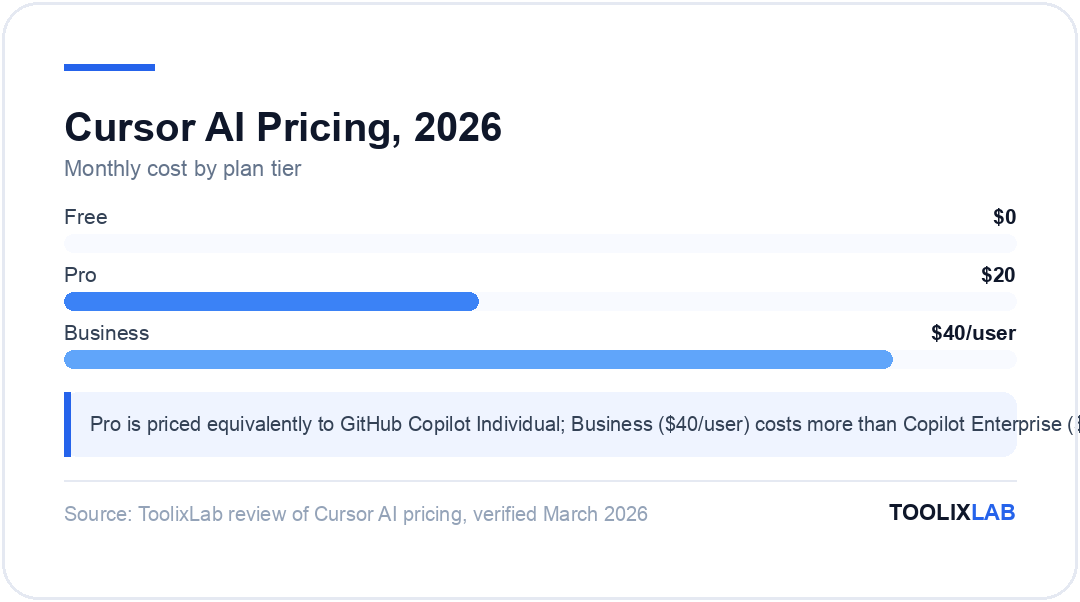
Cursor's pricing is competitive for individual developers but requires more consideration for teams. Here's what each tier includes as of March 2026:
| Feature | Free | Pro ($20/mo) | Business ($40/user/mo) |
|---|---|---|---|
| Tab autocomplete | Limited (2,000/mo) | Unlimited | Unlimited |
| Premium model requests | 50 fast | 500 fast + unlimited slow | 500 fast + unlimited slow |
| Models available | Cursor base models | GPT-5.4, Claude Sonnet 4.6, Gemini 2.5 Pro | All Pro models + admin controls |
| Composer / Agent Mode | Limited | Full access | Full access |
| Privacy mode | Available (opt-in) | Available (opt-in) | Enforced (on by default) |
| SOC 2 compliance | — | — | Yes |
| Team management | — | — | Centralized billing, usage analytics |
The free tier is genuinely useful for getting started — 2,000 tab completions and 50 fast AI requests per month is enough to evaluate whether Cursor fits your workflow. Most developers who work with it seriously for a week end up upgrading to Pro.
At $20/month, Pro is priced equivalently to GitHub Copilot Individual. The Business plan at $40/user/month is more expensive than Copilot Enterprise ($39/user/month) but offers Cursor's more powerful context-aware features that Copilot lacks. For teams with strict security requirements, the Business plan's enforced privacy mode and SOC 2 certification are often deal-clinchers. Check the latest plans on Cursor's pricing page.
Cursor AI vs GitHub Copilot vs Codeium: Head-to-Head
The three tools that dominate the AI code editor conversation in 2026 are Cursor, GitHub Copilot, and Codeium. Here's how they compare across the dimensions that matter most. For a deeper dive, see our full three-way comparison.
| Feature | Cursor AI | GitHub Copilot | Codeium |
|---|---|---|---|
| Starting price | Free / $20/mo Pro | Free / $10/mo Individual | Free / $20/mo Pro (Windsurf) |
| Autocomplete quality | ⭐⭐⭐⭐⭐ | ⭐⭐⭐⭐ | ⭐⭐⭐⭐ |
| Codebase context | Entire project indexed | Open files + limited index | Current file + open tabs |
| Multi-file editing | Yes (Composer) | Limited (Edits) | No |
| Chat interface | Built-in, codebase-aware | Built-in (limited context) | Basic chat |
| Agent / autonomous mode | Yes (Agent Mode) | Limited (Copilot Workspace) | No |
| IDE support | Cursor editor only (VS Code fork) | VS Code, JetBrains, Neovim, etc. | VS Code, JetBrains, Neovim, etc. |
| Model choice | GPT-5.4, Claude Sonnet 4.6, Gemini 2.5 Pro, custom | Claude Opus 4.6, GPT-5.4, Gemini 2.5 Pro | Proprietary model |
| Privacy / enterprise | Privacy mode + SOC 2 (Business) | Enterprise with GHEC | Self-hosted option |
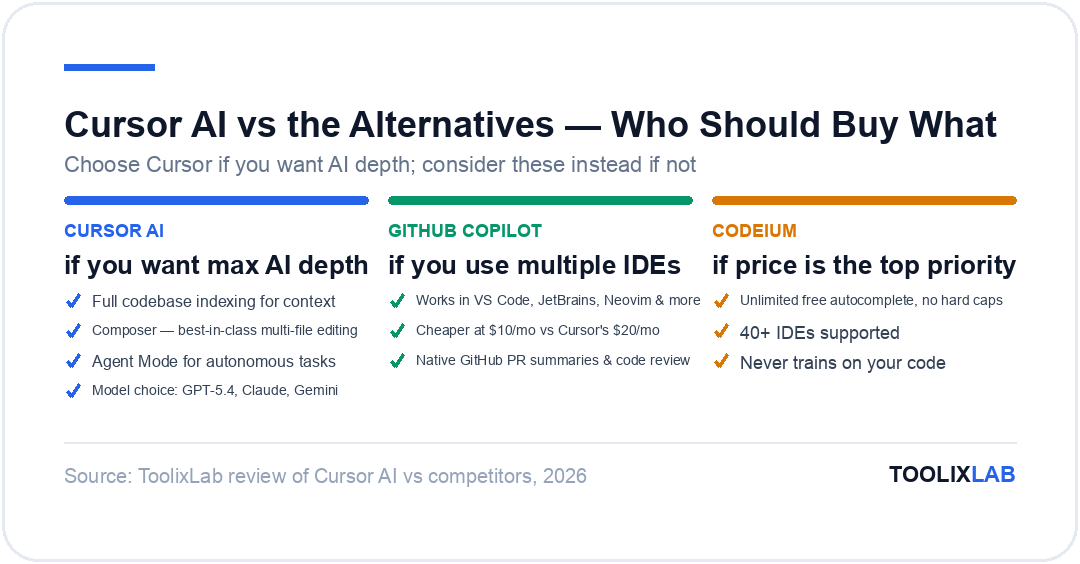
The key takeaway: Cursor wins on AI depth (context, agent mode, model flexibility), while GitHub Copilot wins on ecosystem breadth (IDE support, GitHub integration) and Codeium wins on price (genuinely free for individuals with no hard limits). Your choice should come down to whether you value deep AI integration or broad tooling compatibility more.
How to Get Started with Cursor AI
Getting started with Cursor is remarkably smooth — especially if you're already a VS Code user.
- Download Cursor — Visit cursor.sh and download the installer for Mac, Windows, or Linux. The installer is straightforward and takes under two minutes.
- Import your VS Code settings — On first launch, Cursor asks if you want to import your VS Code extensions, themes, and settings. Click "Import from VS Code" and you're immediately in a familiar environment with all your existing tools.
- Sign in or create a free account — You need an account even for the free tier. Sign up with email or GitHub OAuth. No credit card required.
- Open a project and let it index — Open any existing project folder. Cursor will begin indexing in the background (look for the "Indexing" indicator in the bottom status bar). For a typical project, this takes 30–120 seconds.
- Try Chat first (Cmd+L) — Ask "What does this project do?" or "Where is the main entry point?" to experience codebase-aware context immediately. This is the fastest way to appreciate what separates Cursor from simple autocomplete tools.
- Enable Privacy Mode if needed — Go to Settings → Privacy and toggle "Privacy Mode" if you're working on sensitive code. This prevents your code from being used in model training.
The migration from VS Code is effectively zero-friction. The muscle memory you've built around Cmd+P, split panes, terminal, and keybindings is completely preserved. You're not learning a new editor — you're learning new superpowers inside your existing one. This is a deliberate and smart product decision that lowers adoption barriers dramatically.
Real-World Use Cases for Cursor AI
Understanding Cursor's capabilities is useful; seeing how real developers use it day-to-day is more so. Here are the use cases where Cursor AI adds the most value:
Onboarding to Unfamiliar Codebases
When you join a new project — or return to one you haven't touched in months — Cursor Chat becomes your interactive documentation. Ask "How does the checkout flow work?", "What is the role of the EventBus?", or "How is authentication handled?" and get accurate, cited answers in seconds. This use case alone can save hours of reading source code with no map.
Boilerplate and CRUD Generation
Cursor excels at the parts of coding that are mechanical but time-consuming: generating new API endpoints following your existing patterns, wiring up form validation following your existing conventions, or creating database migration files consistent with your schema. Composer can read your existing endpoints, infer the pattern, and produce new ones that require minimal adjustment.
Debugging and Error Investigation
Paste an error message into Chat with @filename or @currentFile context and Cursor often pinpoints the issue and suggests a fix immediately. For TypeScript type errors, runtime exceptions, and test failures, this removes most of the tedious "read stack trace, find file, read file, figure out what it means" loop.
Writing and Editing Tests
Test generation is one of the strongest Cursor use cases. Open a file, ask "Write unit tests for this module using Jest", and Cursor writes comprehensive tests that match your existing testing patterns (your test file structure, mocking conventions, describe/it nesting style). Coverage of existing code can be increased dramatically in a few minutes of targeted prompting.
Refactoring Legacy Code
Use Composer to refactor a function to use async/await instead of callbacks, convert a class component to a React hook, or extract a repeated pattern into a reusable utility. Cursor shows you diffs before applying, so you can review exactly what's changing. For large refactors, this is significantly faster than doing it manually and safer than find-and-replace.
Documentation and Comments
Select any function or module and ask Cursor to write a JSDoc/TSDoc comment, a README section, or an explanation for a non-technical stakeholder. The quality is high because Cursor has full context about how the code works — not just what it looks like in isolation. This is a huge time-saver when maintaining documentation across an evolving codebase. For developers looking to supercharge their entire development workflow with AI, Cursor is a natural centerpiece.
Cursor AI Performance & Speed
Performance is one area where Cursor's architecture creates meaningful trade-offs. As a standalone application (not an extension), Cursor's memory footprint is slightly larger than VS Code with Copilot. On modern machines (16GB+ RAM), this is imperceptible. On older hardware or systems with limited RAM, you may notice slightly higher resource usage.
Tab autocomplete latency is impressively low — typically under 100ms for suggestions based on immediate context. Chat responses using premium models (GPT-5.4, Claude Sonnet 4.6) respond in 2–5 seconds for typical queries, comparable to using those models directly through their web interfaces.
Composer and Agent Mode are slower by nature — they're doing multi-step reasoning and often reading multiple files before responding. Expect 10–30 seconds for complex Composer requests and up to several minutes for multi-step Agent Mode tasks. These aren't bottlenecks in practice because you're reviewing the proposed changes, not waiting at your keyboard.
Cursor's "fast" vs "slow" request distinction in the pricing tiers is real: fast requests use cached or optimized model serving and respond in seconds; slow requests use full inference and may take noticeably longer during peak usage. On the Pro tier, you have 500 fast requests per month before falling back to slow — in our testing, heavy daily use consumed roughly 100–150 fast requests per week, so power users may hit this limit.
One area where Cursor lags behind competitors: startup time. The first cold launch takes 5–8 seconds on Mac M-series chips, compared to 2–3 seconds for VS Code. This is a minor annoyance that the team is working on but worth noting if you frequently open and close your editor.
Cursor AI Pros and Cons
Pros
- + Entire codebase context — genuinely understands your project
- + Seamless VS Code migration — zero learning curve for VS Code users
- + Composer multi-file editing is genuinely transformative
- + Multiple model choices — pick the best brain for each task
- + Agent Mode handles autonomous multi-step coding tasks
- + Active development — major features ship every 4–6 weeks
- + Generous free tier for evaluation
Cons
- − Only available as a standalone editor (no JetBrains / Neovim plugin)
- − Privacy mode is opt-in, not default — easy to overlook
- − Pro fast request cap (500/mo) may frustrate power users
- − Business tier is expensive for larger teams vs Copilot Enterprise
- − Slightly higher RAM usage than VS Code + extension
- − Slower cold launch time
- − Agent Mode can make unexpected changes — always review diffs
Who Should Use Cursor AI?
Cursor is not for everyone — but for the right developer, it's a step-change in productivity. Here's a guide to whether Cursor is right for you:
Cursor is ideal if you:
- Already use VS Code and want maximum AI capability without changing your environment
- Work on medium-to-large codebases where single-file autocomplete loses context quickly
- Frequently onboard to new projects or navigate unfamiliar codebases
- Want to ship features faster with multi-file editing and AI-driven scaffolding
- Are comfortable with AI as a collaborator and reviewer, not just a tab-completer
- Work independently or on a small team where the per-seat cost is manageable
Cursor may not be ideal if you:
- Use JetBrains IDEs (IntelliJ, WebStorm, PyCharm) as your primary environment
- Work in a large enterprise with strict toolchain requirements that can't accommodate a new editor binary
- Have a tight budget and don't need deep context awareness (Codeium's free tier is compelling here)
- Work primarily on simple scripts or small standalone files where codebase indexing adds minimal value
- Have significant data residency requirements that make cloud-based AI assistance problematic
For freelancers and indie developers who want to maximize productivity with AI tools, Cursor's Pro plan is arguably the highest-ROI $20/month you can spend. The time saved on a single medium-complexity feature often pays for a month's subscription. Understanding how to structure an AI-powered development workflow alongside Cursor can multiply these gains further.
Final Verdict: Is Cursor AI Worth It?
After weeks of daily use across React, TypeScript, Python, and Go projects, our verdict is clear: Cursor AI is the best AI code editor available in 2026 for developers who want the deepest, most capable AI integration in their editor. No other tool matches its combination of codebase-wide context, multi-file editing via Composer, Agent Mode autonomy, and model flexibility.
The key insight is that Cursor represents a fundamentally different philosophy than tools like GitHub Copilot. Copilot augments your editor with AI. Cursor rebuilds the editor around AI. For developers who spend significant portions of their day writing code, this distinction translates into measurable productivity gains — fewer context switches, less manual file navigation, faster boilerplate production, and smarter debugging assistance.
That said, Cursor is not without caveats. The requirement to use a standalone editor (rather than a plugin) is a real constraint for teams entrenched in JetBrains or Neovim. The privacy mode defaults deserve attention. And the Business tier pricing needs to be carefully evaluated against alternatives for teams larger than five people.
Our Rating
If you're a VS Code developer and haven't tried Cursor yet, the free tier requires zero commitment and will change your perspective on what an AI coding assistant can be. Download it, import your settings, open a project you know well, and spend 20 minutes with Chat and Composer. The "aha moment" typically comes within the first hour.
For developers building AI-powered applications alongside their Cursor workflow, exploring the best free AI tools available in 2026 can round out your toolkit without adding cost. The AI development landscape moves fast — and Cursor is currently leading from the front.
⚖️ Our Verdict
Cursor is the best AI coding environment available in 2026 for developers who live in their editor. Its codebase-aware context, multi-file Composer edits, and model flexibility deliver a development experience that VS Code with Copilot simply cannot match — and the free tier lets you validate that claim with zero commitment. The $20/month Pro plan is the most straightforward ROI calculation in software tooling for any developer coding 4+ hours daily.
✅ Best for...
- • Full-stack developers who code 4+ hours per day
- • Teams adopting an AI-first development workflow
- • VS Code users ready to upgrade their entire coding environment
❌ Skip if...
- • You prefer GitHub Copilot inside a non-VS Code IDE
- • You work primarily with legacy or proprietary codebases with strict data policies
- • Your team has a tight tooling budget and Codeium's free tier is sufficient
🔬 How We Reviewed This Tool
This review is based on hands-on use, not a feature-list rewrite. Our process:
- Real workflows: we used the tool on genuine work tasks over an extended period and compared its output directly against its closest competitors.
- Verified claims: pricing, plan limits, and feature availability were checked against the vendor's official pages at the time of writing.
- Documented downsides: we report where the tool failed or frustrated us, not just where it shone — check the cons and "skip if" sections.
- Kept current: this review is re-verified on our refresh cycle; the "Last updated" date reflects the most recent check.
ToolixLab is reader-supported: some links may earn us a commission, which never affects our verdicts.